
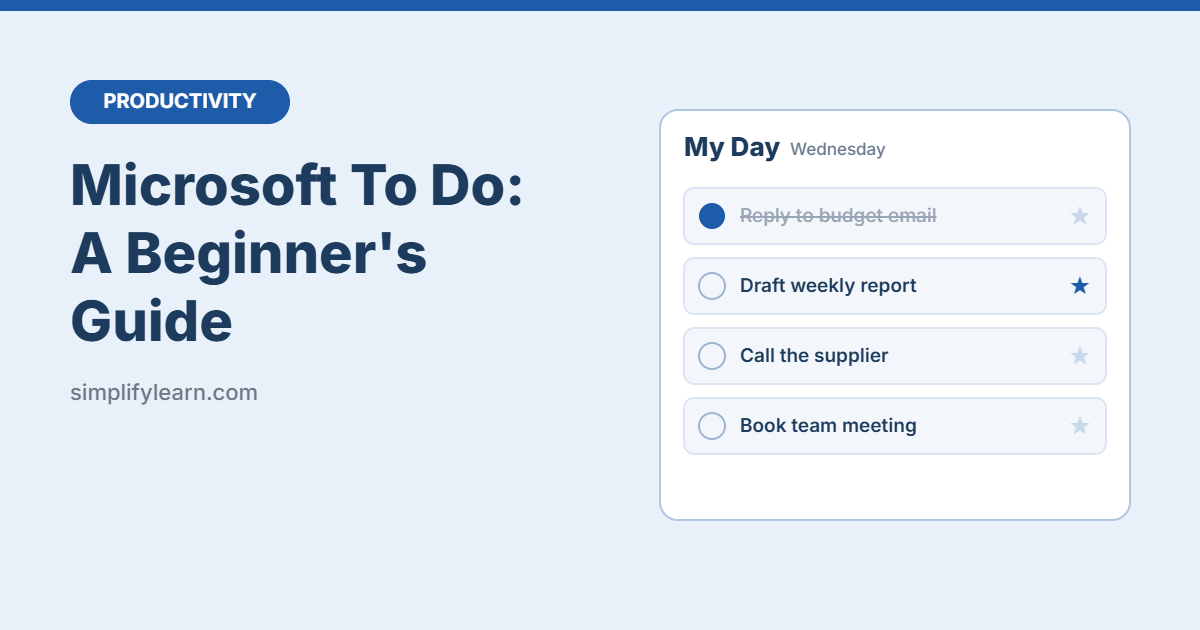
Microsoft To Do is a free, simple task app from Microsoft. It works on Windows, Mac, iPhone, Android and the web, and it connects with Outlook. If sticky notes and scattered lists aren’t working for you, it’s a good place to start.
Quick answer
- Open Microsoft To Do (app or to-do.office.com) and sign in with your Microsoft account.
- Add tasks to Tasks or to your own lists (e.g. Work, Home).
- Each morning, pick a few tasks for My Day.
- Add due dates and reminders to anything time-sensitive.
- Tick tasks off as you finish them.
The built-in lists
| List | What it shows |
|---|---|
| My Day | Your plan for today. It starts empty every morning. |
| Important | Every task you’ve marked with a star |
| Planned | Tasks with a due date or reminder, grouped by date |
| Assigned to me | Tasks assigned to you in Microsoft Planner (work accounts) |
| Flagged email | Emails you flag in Outlook, turned into tasks |
| Tasks | The default inbox for anything not in another list |
You can hide the smart lists you don’t use in Settings → Smart lists.
How My Day works
My Day is the heart of the app. It’s a short list of what you’ll actually do today.
- Right-click any task and choose Add to My Day.
- Click the lightbulb (Suggestions) to see tasks that are overdue, due today, or added recently.
- At midnight My Day clears, but the tasks stay safe in their original lists.
Tip: keep My Day to 3–6 tasks. If you need to pick, use the Eisenhower Matrix.
Make your own lists
- Click + New list at the bottom of the sidebar.
- Name it, for example “Work,” “Home,” or “Shopping.”
- Optional: right-click lists and use Create group to keep related lists together, such as all your project lists.
Get more out of each task
Click a task to open its details panel:
- Add step: break a task into small sub-steps.
- Remind me: get a notification at a set time.
- Add due date: shows in the Planned list.
- Repeat: daily, weekdays, weekly, monthly or custom. Great for routines.
- Add file and Add note: keep links, details and attachments with the task.
Turn Outlook emails into tasks
- In To Do, open Settings and turn on Flagged email under Connected apps.
- In Outlook, flag any email that needs action.
- It appears in the Flagged email list in To Do. Add it to My Day like any other task.
Want emails sorted before you even see them? Set up rules in Outlook.
Share a list
Need a shared shopping list or a small team checklist? Open the list, click the Share list icon, and create an invitation link. People with the link can view and add tasks.
A simple daily routine
| When | What to do |
|---|---|
| Morning (5 min) | Open My Day, check Suggestions, add 3–6 tasks |
| During the day | Capture new tasks straight into Tasks so you don’t forget them |
| End of day (5 min) | Tick off what’s done, move the rest to a date or tomorrow’s My Day |
| Once a week | Review every list and clean up old tasks |
8 quick tips
- Start task names with a verb: “Call,” “Send,” “Review.”
- Star only the truly important tasks. If everything is starred, nothing is.
- Use repeating tasks for weekly reports, bills and reviews.
- Drag tasks between lists in the sidebar to move them quickly.
- Use the mobile app to capture tasks on the go.
- Pin To Do to your taskbar so it’s one click away.
- Combine it with time blocking to give big tasks a real slot in your day.
- Follow the GTD method by creating Next Actions, Waiting For and Someday lists.
Quick summary
- My Day = today’s short list. It resets every night.
- Use your own lists for areas like Work and Home.
- Add steps, reminders, due dates and repeats inside each task.
- Flag Outlook emails to turn them into tasks.
FAQ
Is Microsoft To Do free?
Yes. You only need a free Microsoft account. It’s also included with Microsoft 365 work and school accounts.
What happens to tasks in My Day at midnight?
They disappear from My Day but stay in their original list. Unfinished tasks show up in Suggestions the next day.
Does To Do sync between phone and computer?
Yes. Sign in with the same account on every device and your tasks sync automatically.