
Do you spend the first half hour of every day dragging emails into folders? Outlook rules can do that for you. A rule watches incoming mail and acts on it automatically: moving it, flagging it, or marking it as read.
Quick answer
- In new Outlook or Outlook on the web, go to Settings (gear icon) → Mail → Rules → Add new rule.
- Give the rule a name.
- Add a condition, for example “From” a certain sender.
- Add an action, for example “Move to” a folder.
- Click Save.
How rules work
Every rule has three parts:
| Part | What it means | Example |
|---|---|---|
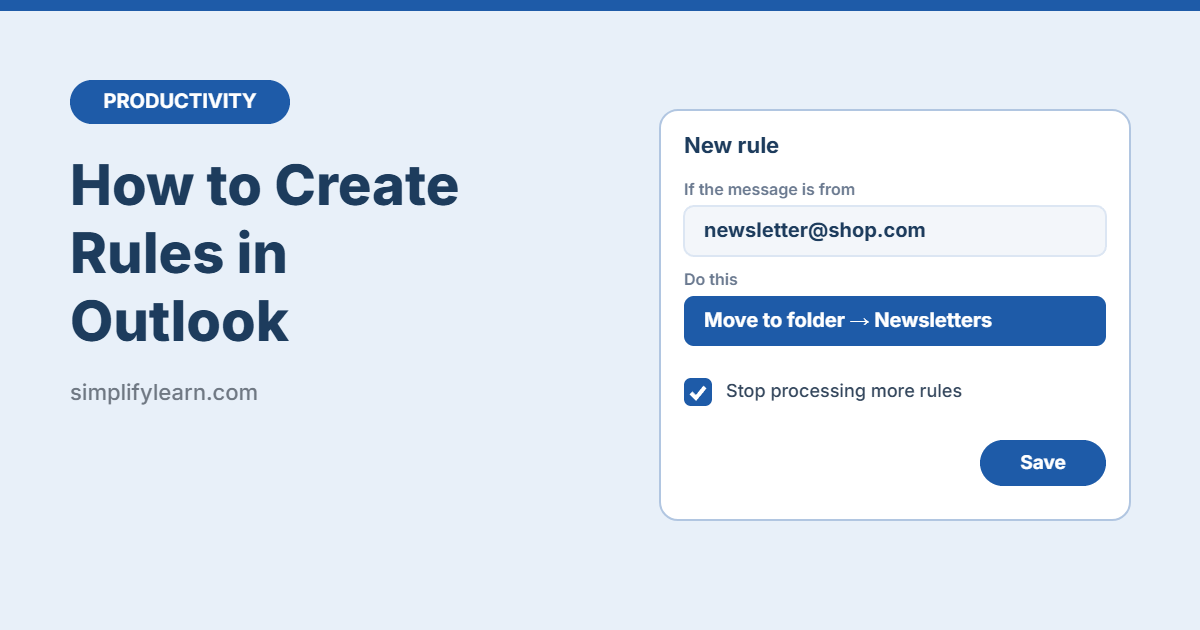
| Condition | Which emails the rule applies to | From newsletter@shop.com |
| Action | What Outlook does with them | Move to the “Newsletters” folder |
| Exception (optional) | When the rule should not run | Unless the subject contains “Invoice” |
Create a rule in new Outlook or Outlook on the web
- Click the gear icon (Settings) in the top right.
- Go to Mail → Rules.
- Click + Add new rule.
- Type a name, such as “Newsletters to folder.”
- Under Add a condition, choose From and type the sender’s address.
- Under Add an action, choose Move to and pick a folder.
- Leave Stop processing more rules ticked if you don’t want other rules to touch these emails.
- Click Save.
Shortcut: you can also right-click an email, choose Rules → Create rule, and Outlook fills in the sender for you.
Create a rule in classic Outlook (Windows desktop)
- Right-click an email from the sender you want to filter.
- Choose Rules → Create Rule.
- Tick the condition, for example From [sender name].
- Tick Move the item to folder and choose a folder.
- Click OK. Outlook asks if you want to run the rule on messages already in the folder. Tick it to clean up old emails too.
For more options, go to File → Manage Rules & Alerts → New Rule. This opens the Rules Wizard with dozens of conditions and actions.
6 useful rules to set up today
| Rule | Condition | Action |
|---|---|---|
| Newsletters out of the way | From each newsletter sender | Move to “Newsletters” |
| Never miss your manager | From your manager | Flag the message / mark as important |
| Receipts in one place | Subject includes “receipt” or “invoice” | Move to “Receipts” |
| Quiet system alerts | From noreply / notification addresses | Move to “Alerts” and mark as read |
| CC’d emails | I’m on the CC line | Move to “CC – read later” |
| Project emails | Subject includes the project name | Move to the project folder |
Tip: don’t create too many folders. Five to eight is plenty. Outlook search can find everything else.
Other Outlook tools that help
- Sweep (new Outlook and web): select an email, click Sweep, and delete or move all emails from that sender at once, or keep only the latest one.
- Focused Inbox: splits your inbox into Focused and Other tabs based on what you usually read.
- Quick Steps: one-click actions such as “move to folder and mark as read.” Useful for emails you sort by hand.
- Categories: color labels you can add with rules, so one email can belong to several topics without being moved.
Common mistakes
- Rules in the wrong order. Rules run from top to bottom. If an early rule has “Stop processing more rules” ticked, later rules won’t run for those emails. Drag rules to reorder them.
- Conditions that are too broad. “Subject contains ‘report'” might move emails you need to see. Test with a narrow condition first.
- Forgetting to check moved folders. Rules move mail out of sight. Block time to check those folders, for example once a day.
- Client-only rules. In classic Outlook, some rules only run while Outlook is open on your computer. They show “(client only)” in the rules list.
Quick summary
- A rule = condition + action (+ optional exception).
- New Outlook / web: Settings → Mail → Rules → Add new rule.
- Classic Outlook: right-click an email → Rules → Create Rule.
- Start with 3–5 rules: newsletters, receipts, your manager, alerts.
FAQ
Do Outlook rules work on my phone?
You can’t create rules in the Outlook mobile app, but rules you create on the web or new Outlook run on the server, so your phone shows the already-sorted mail.
Can I apply a rule to emails I already have?
Yes. In classic Outlook, use Run Rules Now in Manage Rules & Alerts. In new Outlook and the web, use the run option next to the rule in Settings, or use Sweep for one sender.
How do I turn off a rule without deleting it?
Go back to the rules list and switch the rule off (or untick it in classic Outlook). You can turn it back on any time.