
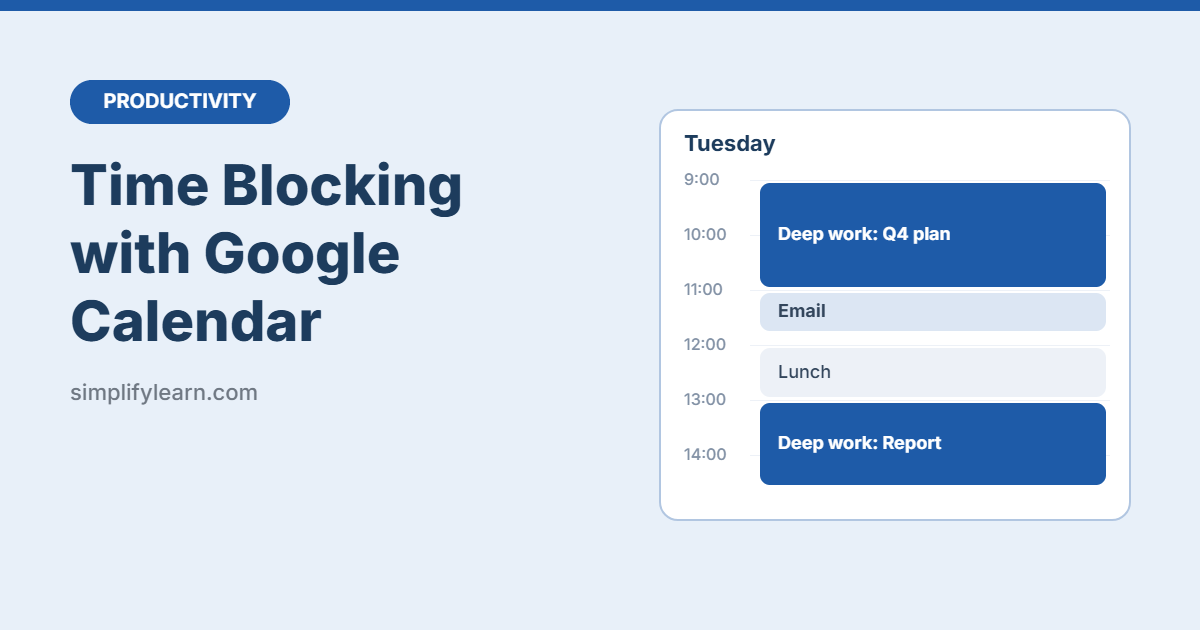
A to-do list tells you what to do. Time blocking tells you when you’ll do it. And you can do it with the free calendar you already have.
In short: instead of working from a long list, you put each task on your calendar as an event with a start and end time, just like a meeting.
Why time blocking works
- It shows you how much time you really have. A list of 15 tasks looks fine until you try to fit them into a 6-hour day.
- It protects focus time. If your calendar is empty, others will fill it with meetings.
- It removes decision fatigue. You don’t waste time deciding what to do next. The calendar tells you.
Step 1: Create a separate calendar for your blocks
This keeps your focus blocks separate from meetings, so you can show or hide them with one click.
- Open Google Calendar on your computer.
- In the left sidebar, click the + next to “Other calendars.”
- Choose Create new calendar.
- Name it something like “Focus Blocks” and click Create calendar.
Step 2: Choose a color system
Colors let you see your day at a glance. Keep it simple, with 3 to 5 colors at most. For example:
| Color | Use for |
|---|---|
| Green | Deep work (writing, analysis, planning) |
| Blue | Meetings and calls |
| Yellow | Email and admin |
| Grey | Breaks, lunch, travel |
To change an event’s color, right-click it in the calendar and pick a color.
Step 3: Block your most important work first
Look at your week and add your biggest tasks first, ideally during the hours when you have the most energy. For most people, that’s the morning.
- Click and drag on an empty time slot.
- Type a clear title, e.g. “Draft Q4 budget,” not “Work.”
- Select your Focus Blocks calendar from the drop-down.
- Click Save.
Tip: 60–120 minutes is a good length for deep-work blocks. Inside each block, you can use the Pomodoro Technique to stay focused.
Step 4: Batch small tasks together
Don’t create a block for every small task. Group them instead:
- Email: two 30-minute blocks a day (e.g. 11:30 and 16:00)
- Admin: one block for invoices, forms, and quick replies
- Calls: group them into one afternoon slot when you can
Step 5: Use recurring events for routines
If you do something every day or every week, set it once:
- Create the event.
- Click Does not repeat under the title.
- Choose Every weekday, Weekly, or Custom.
Good routines to repeat: a morning planning block, daily email blocks, a Friday weekly review.
Step 6: Add buffer time
Tasks almost always take longer than planned. Leave 15–30 minutes empty between big blocks, or keep one “catch-up” block each afternoon. A schedule with zero gaps will fall apart by 11 a.m.
Bonus: Google Calendar features that help
- Focus time (work and school accounts): a special event type that can automatically decline meetings during that time. Click an empty slot and choose Focus time.
- Working hours: in Settings, set your working hours so people see when you’re not available.
- Duplicate: click an event, open the three-dot menu, and choose Duplicate to copy a block to another day quickly.
- Keyboard shortcuts: press
Dfor day view,Wfor week view, andTto jump to today.
A sample time-blocked day
| Time | Block |
|---|---|
| 8:30 – 8:45 | Plan the day |
| 8:45 – 10:45 | Deep work: main project |
| 10:45 – 11:00 | Break |
| 11:00 – 11:30 | Email and messages |
| 11:30 – 12:30 | Meetings |
| 12:30 – 13:30 | Lunch |
| 13:30 – 15:00 | Deep work: second priority |
| 15:00 – 15:30 | Buffer / catch-up |
| 15:30 – 16:00 | Email, admin, plan tomorrow |
Common mistakes
- Overbooking. Plan about 70% of your day and leave the rest for surprises.
- Vague titles. “Project work” doesn’t help. “Write intro + section 1” does.
- Giving up after one bad day. When things change, drag the blocks to a new time. Moving a block is part of the system.
Quick summary
- Create a separate “Focus Blocks” calendar.
- Use 3–5 colors for different kinds of work.
- Block your most important work first, at your best hours.
- Batch email and admin, and leave buffer time.
FAQ
Can I time block on my phone?
Yes. The Google Calendar app for Android and iPhone lets you create, color, and move events. Setting up a new calendar is easier on a computer, though.
What’s the difference between time blocking and a to-do list?
A to-do list has no time limits. Time blocking gives every task a specific slot, so you can see whether your plan actually fits in the day.
How do I decide which tasks to block first?
Use the Eisenhower Matrix to sort tasks by urgency and importance, then block the “important” ones first.