
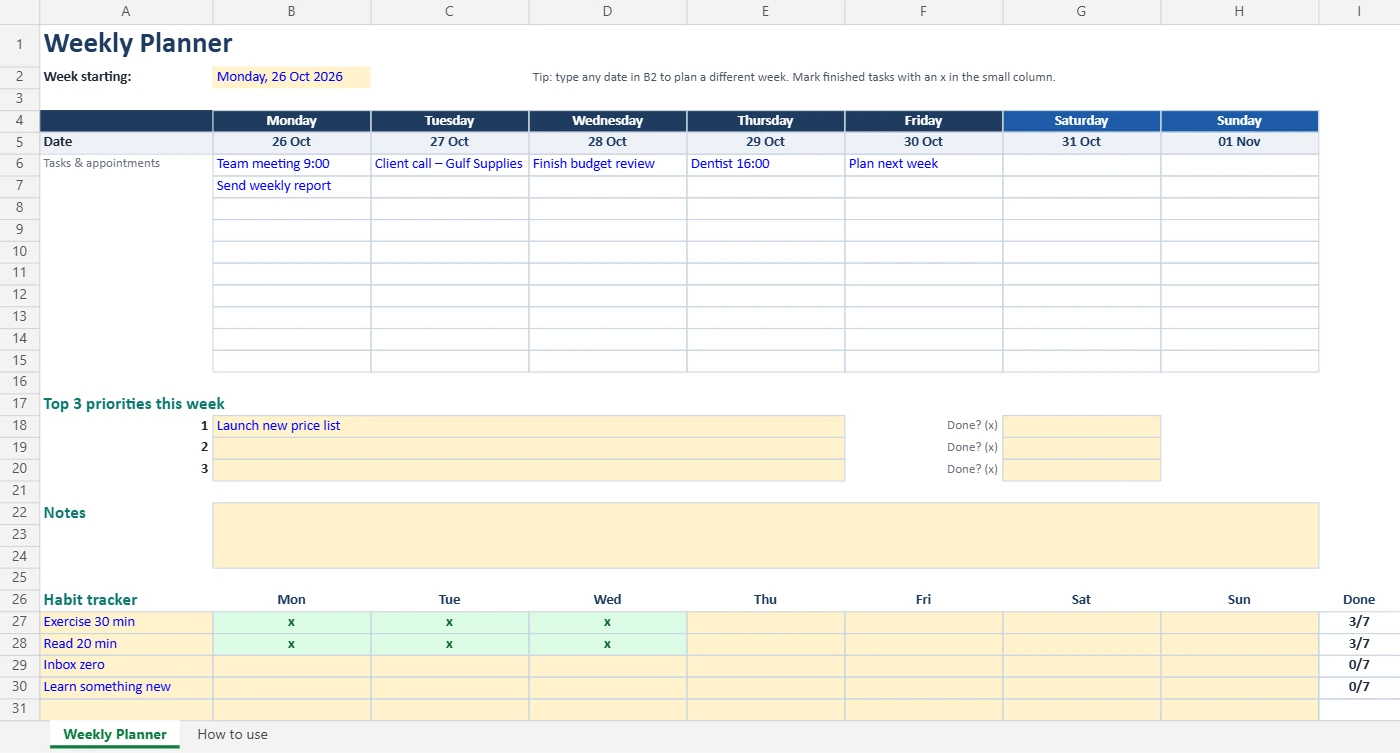
A simple weekly plan is one of the easiest ways to feel in control of your work. This free weekly planner template fits on one landscape page: tasks for each day, your top three priorities, notes and a habit tracker. The dates fill in automatically, so you can reuse the same file every week in Excel or Google Sheets.
Download the free weekly planner (.xlsx)
Quick facts
| Format | Excel .xlsx (opens in Excel and Google Sheets) |
| Price | Free for personal and business use |
| Page | One landscape A4 page, already set to fit on one sheet when printed |
| Week start | Monday by default; any day you choose |
| Sections | 7 daily columns, top 3 priorities, notes, habit tracker |
| Extra sheet | “How to use” tab with short instructions |
What is inside
| Section | How it works |
|---|---|
| Automatic week | Cell B2 shows the Monday of the current week. Type any date there to plan another week; all 7 dates and day names update. |
| Daily columns | Monday to Sunday with 10 lines each for tasks and appointments |
| Top 3 priorities | Type an x in the “Done?” box when a priority is finished; it turns green with a line through it |
| Notes | Space for ideas, follow-ups and reminders |
| Habit tracker | Up to 6 habits with a daily x and an automatic count (for example 5/7) |
How to use the template (step by step)
- Open the file in Excel. If you see a yellow “Protected View” bar, click Enable Editing.
- Check the week: B2 already shows this week’s Monday. To plan next week, type next Monday’s date in B2 (in Excel, Ctrl + ; enters today’s date).
- Delete the sample entries (the sample meetings, priority and habits) and type your own.
- Fill in your top 3 priorities first, then place appointments and tasks on their days.
- Add your habits in the habit tracker. Each day you keep a habit, type x under that day. The “Done” column counts them for you.
- Print it (File → Print) or keep it open on your second screen during the week.
Use it in Google Sheets
- Open Google Drive and click New → File upload, then choose the planner file.
- Double-click the file, then choose Open with → Google Sheets.
- Click File → Save as Google Sheets so you can edit it freely and open it on your phone with the Google Sheets app.
The date formulas, green priorities and habit counts all work in Google Sheets. Not sure which app to use? See Google Sheets vs Excel.
Example: one week, planned
Here is how an office coordinator might fill in the planner for a busy week. Notice that each day has only a few real tasks, and the top priorities are placed early in the week.
| Day | Planned |
|---|---|
| Monday | Team meeting 9:00 · Send weekly report · Priority 1: draft new price list |
| Tuesday | Client call 11:00 · Priority 2: update supplier contacts |
| Wednesday | Finish budget review · Order office supplies |
| Thursday | Priority 3: prepare training slides · Dentist 16:00 |
| Friday | Review the week (15 min) · Plan next week |
| Saturday / Sunday | Left mostly empty on purpose |
Habits for the week: exercise 30 minutes, read 20 minutes, clear the inbox before leaving work. By Friday the habit tracker shows at a glance which ones actually happened.
How to plan your week in 15 minutes
- Brain dump (5 minutes): list everything on your mind: tasks, meetings, errands.
- Pick your top 3 (2 minutes): what would make this week a success? Write them in the priorities box.
- Place fixed appointments (3 minutes): meetings, calls and deadlines go on their days first.
- Schedule priority work (3 minutes): give each top priority a specific day, ideally in the morning.
- Spread the rest (2 minutes): keep each day realistic; leave some empty space for surprises.
Do it on Sunday evening or first thing on Monday, whichever fits your week. If you like to give tasks exact times, combine this planner with time blocking in Google Calendar.
Tips that make weekly planning stick
- Fewer tasks per day: 3–5 meaningful tasks is plenty. A long list you never finish is demotivating.
- Review on Friday: move unfinished tasks to next week or drop them.
- Keep habits small: “read 20 minutes” is easier to keep than “read more”.
- Work in focused blocks: the Pomodoro technique helps you actually finish the priority you scheduled.
- Keep a history: copy the sheet each week (right-click the tab → Move or Copy → Create a copy) and rename the tab with the date, so you can look back at your progress.
Printing tips
- The file is already set to landscape, A4, fit to one page, so File → Print should give you one clean page.
- Using US Letter paper? Change the paper size in the print settings; the planner still fits on one page.
- Print a few blank weeks at once: clear the sample text, then change the date in B2 and print again for each week.
- More help: how to print an Excel sheet on one page.
Weekly planner vs daily planner vs to-do app
| Tool | Best for | Weak spot |
|---|---|---|
| Weekly planner (this template) | Seeing the whole week, balancing workload, setting priorities | Not much room for hour-by-hour detail |
| Daily planner | Very busy days with many appointments | Easy to lose sight of the bigger goals |
| To-do app (Microsoft To Do, Todoist) | Reminders and tasks on your phone | Long lists with no sense of which day is overloaded |
Many people use a weekly planner for the plan and a to-do app for reminders. For bigger work with deadlines and owners, use the free project tracker template instead.
Prefer Notion?
If you already use Notion, you can build the same planner there:
- Create a page called Weekly Plan.
- Add a database called Tasks with properties: Day (date), Status (Not started / Done) and Priority (checkbox for top 3).
- Add a Calendar or Board view grouped by day, and a filtered view showing only priorities.
- Add a simple to-do list block for habits.
New to Notion? Follow our Notion for beginners guide.
Download the free weekly planner (.xlsx)
FAQ
Is this weekly planner template free?
Yes, for personal and business use. Please do not resell it.
Can my week start on Sunday or Saturday?
Yes. Type the date of your first day (for example a Sunday) in cell B2, and the seven days follow from that date.
Does it work in Google Sheets?
Yes. Upload it to Google Drive, open it with Google Sheets and save it as a Google Sheets file. The dates, colours and habit counts keep working.
Can I use it on my phone?
Yes. Save it in Google Sheets or OneDrive and open it in the Google Sheets or Excel mobile app.
How do I plan next week without losing this week?
Right-click the sheet tab, choose Move or Copy, tick “Create a copy”, then type next week’s date in B2 on the new copy.
Can I add more lines per day?
Yes. Each day has 10 lines; select a row inside the task area and insert rows if you need more. The print setting still fits everything on one page, just slightly smaller.
Is there a PDF version?
Open the file and use File → Save As (or Export) → PDF to create your own blank printable version.