
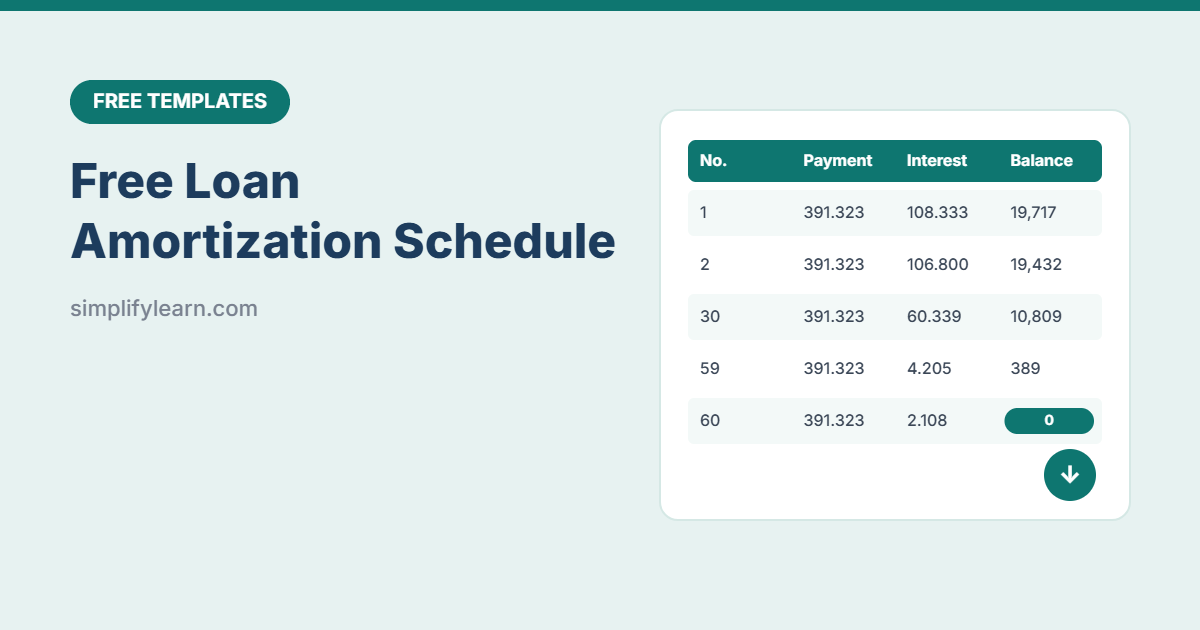
Before you take a car loan, personal loan, business loan or mortgage, it helps to see exactly where your money goes. This free amortization schedule shows every payment: how much is interest, how much reduces the loan, and the balance left. It also shows how much you’d save by paying a little extra each month.
Download the free loan amortization schedule (.xlsx)
What is inside
| Feature | What it does |
|---|---|
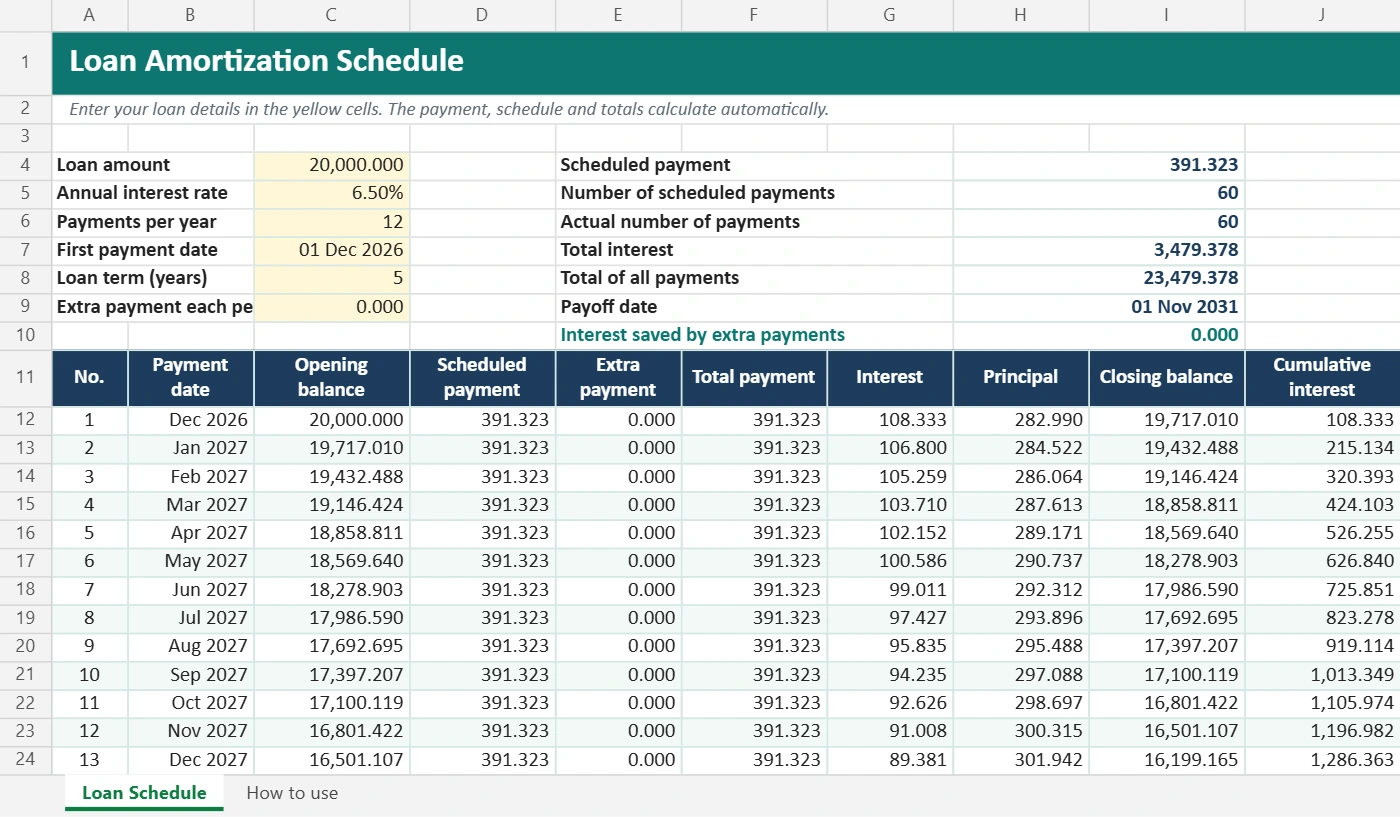
| Loan inputs | Amount, annual interest rate, payments per year (monthly, quarterly, half-yearly or yearly), first payment date and term |
| Automatic payment | Calculates the fixed payment with Excel’s PMT function |
| Full schedule | Every payment with date, opening balance, interest, principal, closing balance and cumulative interest (up to 360 payments) |
| Extra payments | Add an extra amount per period and see the new payoff date |
| Summary | Total interest, total paid, actual number of payments, payoff date and interest saved |
Worked example
A 20,000 loan at 6.5% a year, paid monthly over 5 years:
| No extra payment | With 100 extra each month | |
|---|---|---|
| Monthly payment | 391.323 | 491.323 |
| Number of payments | 60 | 47 |
| Total interest | 3,479.378 | 2,655.512 |
| Interest saved | — | 823.865 |
In the first month, 108.333 of the payment is interest (20,000 × 6.5% ÷ 12) and 282.990 reduces the loan. By the last payment, almost all of it goes to the loan. That’s how amortization works.
How to use it
- Enter the loan amount, annual interest rate and term in years.
- Choose payments per year (12 for monthly) and the first payment date.
- Read the scheduled payment and the summary at the top.
- Optional: try an extra payment to see how much time and interest you save.
- Print it or save as PDF to compare offers from different banks.
The formula behind it
=PMT(annual_rate/12, years*12, -loan_amount)Each month: interest = opening balance × rate ÷ 12, principal = payment − interest, and closing balance = opening balance − principal. Use Goal Seek to work backwards, for example to find the loan you can afford for a given monthly payment.
Compare loan offers
- Make a copy of the sheet for each offer and compare total interest, not just the monthly payment.
- A longer term lowers the payment but usually costs more interest overall.
- Ask the bank about fees and early-repayment charges, which this schedule doesn’t include.
Plan how the payment fits your budget with the monthly budget template or, for a business, the cash flow forecast.
Important note
This template uses standard fixed-rate amortization for planning. Real loans may calculate interest daily, round payments, use variable rates or add fees, and Islamic financing uses different structures. Always check the official schedule from your bank. This is not financial advice.
FAQ
How do I calculate a loan payment in Excel?
Use =PMT(rate/12, years*12, -amount). For example, =PMT(6.5%/12, 60, -20000) returns about 391.32 per month.
Does it work in Google Sheets?
Yes. Download the file and import it with File → Import → Upload. PMT and EDATE work the same in Google Sheets.
How do extra payments help?
Extra payments go straight to the loan balance, so later interest is calculated on a smaller amount. In the example, 100 extra a month saves about 824 in interest and ends the loan 13 months early.
Can I use it for a mortgage?
Yes, for fixed-rate planning up to 30 years of monthly payments. Check your lender’s schedule for fees, rounding and variable rates.