
When your team grows past a handful of people, “who do I call in Finance?” becomes a daily question. A simple employee directory answers it: names, roles, departments, phone numbers and emails in one place that everyone can search.
Download the free employee directory template (.xlsx)
What is inside
| Feature | How it works |
|---|---|
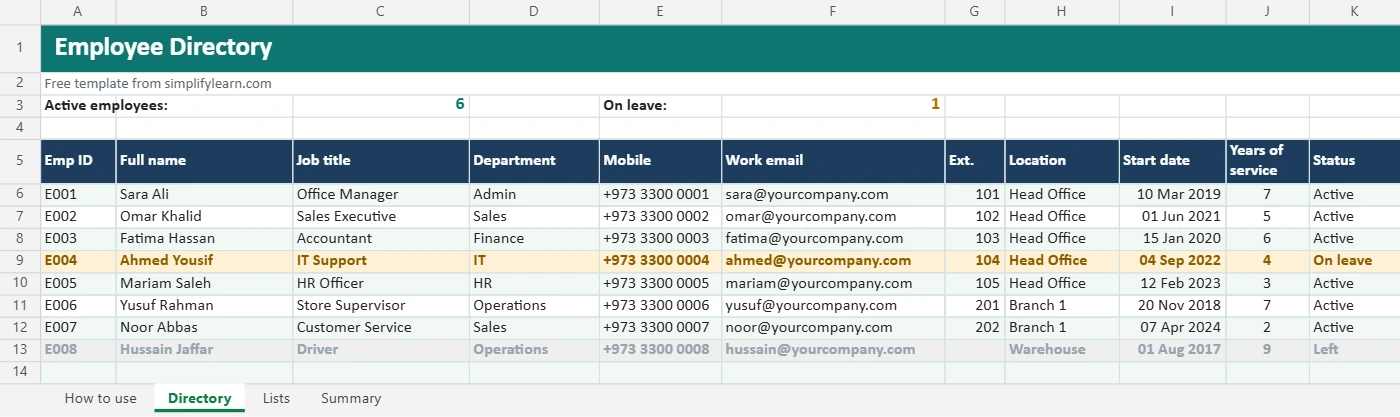
| Directory sheet | Room for 200 employees: ID, name, job title, department, mobile, email, extension, location, start date |
| Drop-downs | Department, location and status, editable on the Lists sheet |
| Years of service | Calculates automatically from the start date |
| Status colors | “On leave” turns amber and “Left” turns grey, so you keep history without deleting rows |
| Summary sheet | Active and on-leave headcount for each department |
| Filters and frozen header | Find anyone in seconds, even with a long list |
How to use it
- Download the file and open the Lists sheet. Change the departments and locations to match your company.
- Replace the sample employees on the Directory sheet with your team.
- Pick a status for each person: Active, On leave or Left.
- Use the filter arrows to show one department or location.
- Check the Summary sheet for headcount by department.
Use it in Google Sheets
Open Google Drive → New → File upload, then open the file with Google Sheets. Drop-downs, formulas and colors keep working. To let the team view it without editing, share it as Viewer. See how to share files in Google Drive safely.
Tips for a useful directory
- Keep it to work contact details. Don’t add salaries, ID numbers or home addresses to a file many people can see.
- Name one owner (HR or the office manager) who updates it when people join or leave.
- Add it to onboarding: new joiners get added on day 1. See our onboarding checklist template.
- Link it from Teams or your intranet so people always open the latest version.