
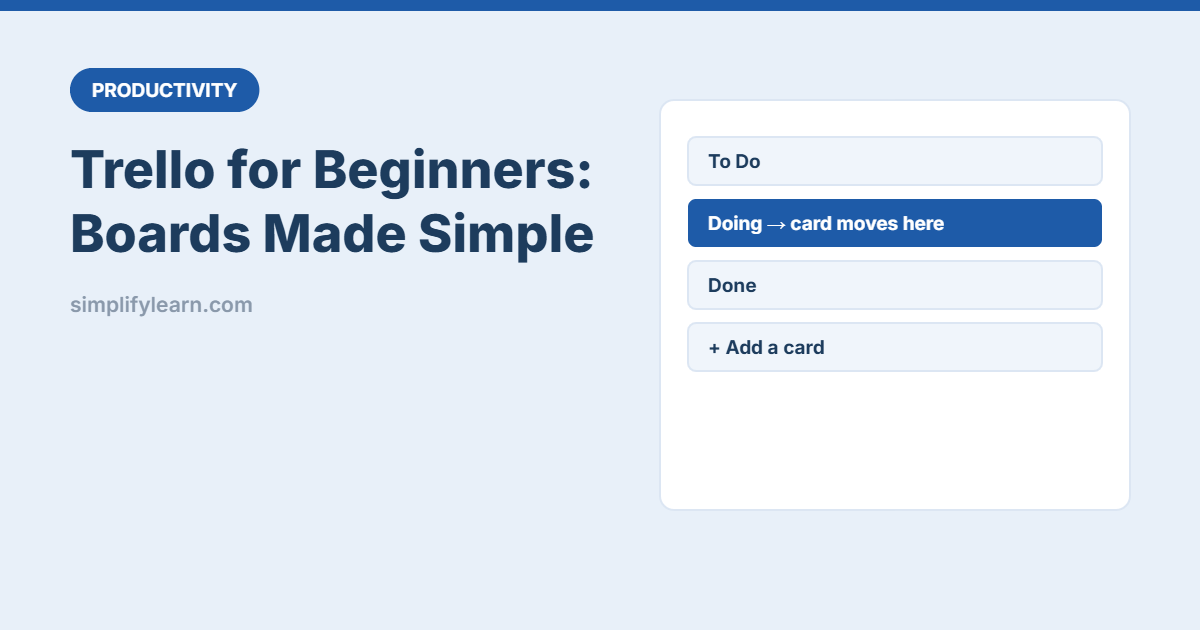
Trello is one of the easiest ways to see all your work in one place. Instead of long task lists, you move cards across columns, like sticky notes on a whiteboard. This guide shows you how Trello works and how to set up your first board in about 10 minutes.
Trello in one minute: boards, lists and cards
| Part | What it is | Example |
|---|---|---|
| Board | One project or area of work | “Website Redesign” or “Office Move” |
| List | A column, usually a stage of work | To Do, Doing, Done |
| Card | One task or item | “Write the About page” |
You drag cards from left to right as work moves forward. One look at the board tells you what’s waiting, what’s in progress and what’s finished.
Set up your first board (step by step)
- Sign up at trello.com with your email or Google/Microsoft account. The free plan is enough to start.
- Create a board: click Create → Create board, give it a clear name and pick a background.
- Add three lists: To Do, Doing and Done. This simple setup works for almost anything.
- Add cards: click Add a card under To Do and type each task. Start with 5–10 cards, not 50.
- Move a card: drag the task you’re working on now into Doing.
- Finish it: when it’s done, drag it to Done. That’s the whole basic workflow.
Open a card: the useful features
Click any card to open it. These are the features beginners use most:
- Description: add details, links or instructions so nobody has to ask.
- Checklist: break a task into small steps. The card shows progress like 2/5.
- Due date: set a deadline and a reminder. Overdue cards turn red.
- Members: assign the card to a person so it’s clear who owns it.
- Labels: colored tags such as “Urgent”, “Client” or “Finance”. Name them so everyone knows what each color means.
- Attachments: add files from your computer, Google Drive or OneDrive.
- Comments: discuss the task on the card instead of in long email threads.
Board ideas you can copy
| Board | Lists |
|---|---|
| Personal tasks | This Week · Today · Waiting · Done |
| Content calendar | Ideas · Writing · Review · Scheduled · Published |
| Hiring | Applied · Interview · Offer · Hired |
| Customer requests | New · In Progress · Waiting for Customer · Closed |
| Small event | To Book · To Buy · Confirmed · Done |
Prefer a spreadsheet? Our free content calendar template works in Excel and Google Sheets.
Working with a team
- Invite people: click Share on the board and add their email.
- One owner per card: several members on one card often means nobody does it.
- Use @mentions in comments to notify a specific person.
- Watch a card (the eye icon) to get updates on tasks you care about.
- Agree on simple rules: for example, “Only move a card to Done when it’s really finished.”
Handy extras
- Templates: Trello has ready-made board templates for projects, meetings and more.
- Automation (Butler): simple rules like “when a card moves to Done, mark the checklist complete”. Start with one rule, not ten.
- Mobile app: add cards on the go, and use the app’s notifications for due dates.
- Email to board: each board has an email address. Forward an email and it becomes a card.
- Keyboard shortcuts: press N to add a card, Space to assign yourself, ? to see all shortcuts.
Tips to keep your board tidy
- Limit “Doing” to 2–3 cards. Too many open tasks slows everything down.
- Archive the Done list every week or month so the board stays clean.
- Write cards as actions: “Send invoice to ABC Co.” is clearer than “Invoice”.
- Review the board weekly. Our weekly review checklist shows how.
Trello vs other tools
Trello is best when you want something visual and simple. If you need docs, wikis and databases in the same place, look at Notion or ClickUp. See Notion vs ClickUp. For a simple personal to-do list, Microsoft To Do may be all you need.
Quick summary
- Boards are projects, lists are stages, cards are tasks.
- Start with To Do, Doing and Done, then adjust.
- Use checklists, due dates and one owner per card.
- Archive finished cards regularly to keep the board readable.