
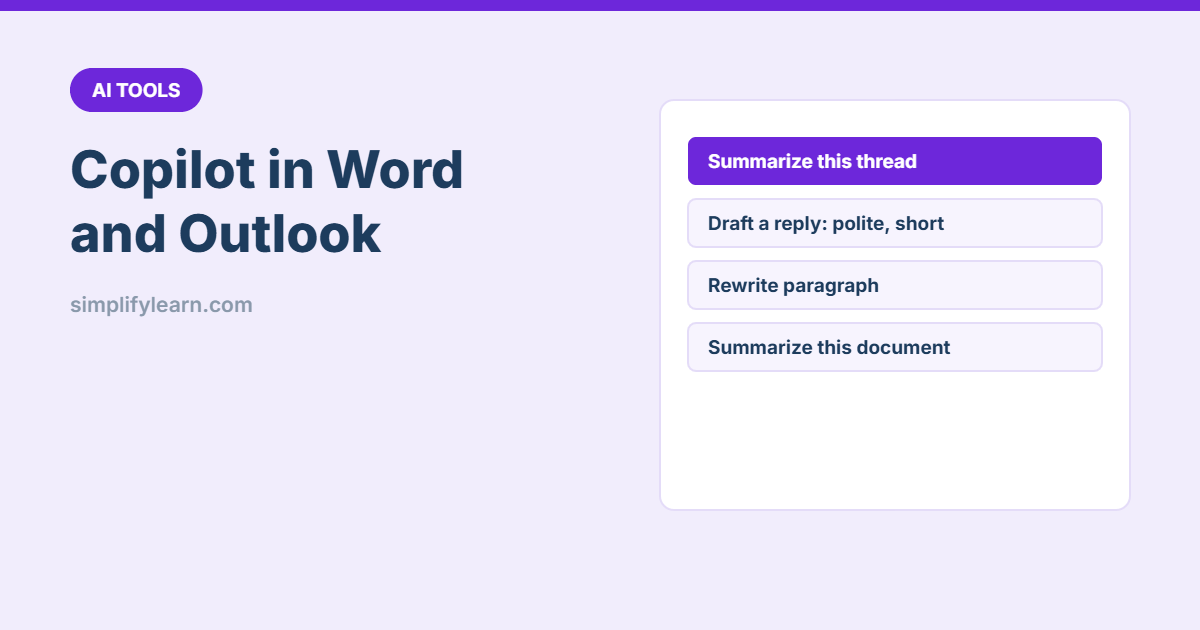
If your company uses Microsoft 365, you may already see the Copilot icon in Word and Outlook. It’s Microsoft’s AI assistant, built into the apps you use every day. Here’s what it can do, with prompts you can try today.
Do you have it?
Copilot features depend on your Microsoft 365 plan and on what your IT admin has turned on. Look for the Copilot icon in the ribbon (Word) or above an email (Outlook). Business Copilot works with your organization’s data protections, so prompts and files stay inside your company’s Microsoft 365 environment. Still, follow your company’s AI policy. See our AI privacy checklist.
Copilot in Word
1. Draft from a short brief
In a new document, click Draft with Copilot and describe what you need:
Write a one-page policy for working from home for a 30-person company.
Include eligibility, working hours, equipment, security and approval process.
Use clear headings and simple language.
2. Draft from your own files
You can reference files from OneDrive or SharePoint (type / to pick a file):
Create a project proposal based on /Meeting notes 12 Oct and /Budget 2027.
Include objectives, scope, timeline and budget summary.
3. Rewrite and change the tone
Select a paragraph and choose Rewrite or ask: “Make this shorter and more formal” or “Turn this into a bulleted list.”
4. Summarize a long document
Open the Copilot pane and ask: “Summarize this document in 5 bullet points and list any deadlines or decisions.” Great for contracts, reports and tender documents (always read the important parts yourself).
5. Ask questions about the document
“What does section 4 say about payment terms?” or “Which risks are mentioned?”
6. Turn text into a table
Select text and ask Copilot to convert it into a table. It’s useful for comparisons and price lists.
Copilot in Outlook
1. Summarize a long thread
Open a long email conversation and click Summary by Copilot (or Summarize) at the top. You’ll get the key points, who said what and open questions.
2. Draft a reply
Click Draft with Copilot and describe your reply:
Reply politely: we accept the new delivery date of 15 Nov,
but we need the updated invoice before payment. Keep it short.
Choose the length and tone, then edit before sending.
3. Coaching
Write your email, then use Coaching by Copilot to get feedback on tone, clarity and how the reader may feel. It’s helpful for sensitive messages.
4. Prepare for meetings
Depending on your plan, Copilot can summarize related emails and files before a meeting. Pair it with our guide on planning meetings with AI.
Tips for better results
- Be specific: audience, length, tone and format.
- Point to the right files instead of hoping Copilot finds them.
- Iterate: “Make it shorter”, “Add a table”, “Use simpler words”.
- Always check facts, names and numbers. Copilot can still make mistakes.
- Arabic: Copilot supports Arabic, but have a native speaker review important documents.
Quick summary
- Word: draft, rewrite, summarize and ask questions about documents.
- Outlook: summarize threads, draft replies and get tone coaching.
- Give clear instructions and reference your own files.
- Review everything before you send or share it.
Using Excel too? See Copilot in Excel.