
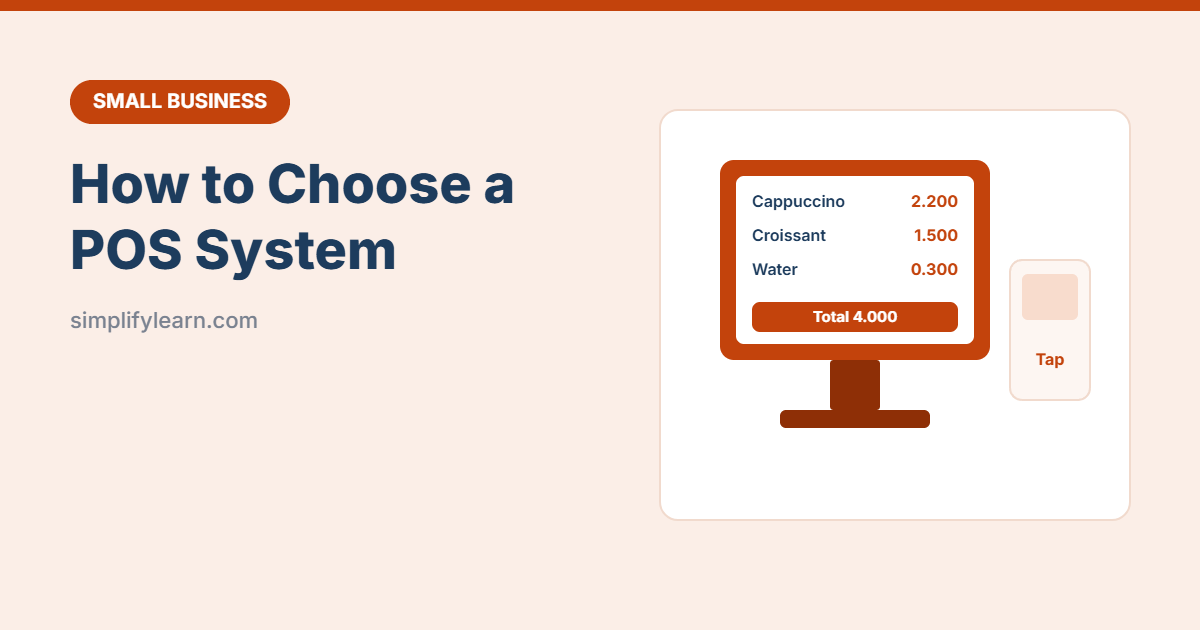
A modern POS (point-of-sale) system does much more than ring up sales. It tracks stock, shows your best-selling items, manages staff, prints proper receipts and connects to card payments. Choosing the right one saves hours every week. Choosing the wrong one is painful to undo.
What a POS system does
- Records every sale and takes payment (cash, card, phone wallets)
- Prints or emails receipts
- Tracks inventory and warns you when stock is low
- Shows sales reports by product, staff member, day and hour
- Manages staff logins and permissions
- Stores customer details and loyalty points (on some systems)
Features to look for
| Feature | Why it matters |
|---|---|
| Cloud-based | See sales from your phone and get automatic backups |
| Offline mode | Keep selling if the internet goes down |
| Inventory | Stock levels, low-stock alerts, suppliers and purchase orders |
| Reports | Best sellers, busy hours, staff sales, profit margins |
| Payment integration | Works with your card terminal and local payment methods |
| Tax / VAT | Receipts and reports that meet your country’s rules (some countries require e-invoicing) |
| Integrations | Accounting software, online store, delivery apps |
| Industry features | Restaurants: tables, kitchen tickets, modifiers. Retail: barcodes, variants. Salons: appointments. |
| Language and support | Arabic receipts and local support if you need them |
Hardware you may need
- Tablet, touchscreen or computer
- Card terminal (often from the POS provider or your bank)
- Receipt printer and cash drawer
- Barcode scanner (retail)
- Kitchen printer or kitchen display (restaurants)
Check which hardware is supported before buying anything.
Costs to compare
- Software subscription (monthly, often per device or location)
- Hardware (buy or rent)
- Payment processing fees per card transaction. See accepting payments.
- Setup, training and add-ons (loyalty, online ordering, extra users)
- Contract length and cancellation fees
Compare the total cost for a year, not just the monthly price.
Questions to ask before you buy
- Is it used by businesses like mine in my country?
- Does it support my card terminal, local payment methods and VAT rules?
- What happens when the internet is down?
- Can I export my data if I leave?
- What support is included, and in which hours and languages?
- Is there a free trial or demo with my real products?
Getting started
- Import your products with prices, categories and stock (use a clean spreadsheet; see our inventory template).
- Create staff accounts with the right permissions.
- Run a test day before going live.
- Check reports weekly and add the key numbers to your KPI dashboard.
Quick summary
- Choose cloud-based with offline mode, inventory and good reports.
- Make sure it fits your industry, payment methods and local tax rules.
- Compare the full yearly cost and try a demo first.