
Running out of a best-seller, or over-ordering something that never sells, costs money. This free inventory template keeps a simple, reliable record: list your products once, log every delivery and sale, and the stock levels, reorder alerts and stock value update automatically.
Download the free inventory tracker (.xlsx)
What is inside
| Sheet | What it does |
|---|---|
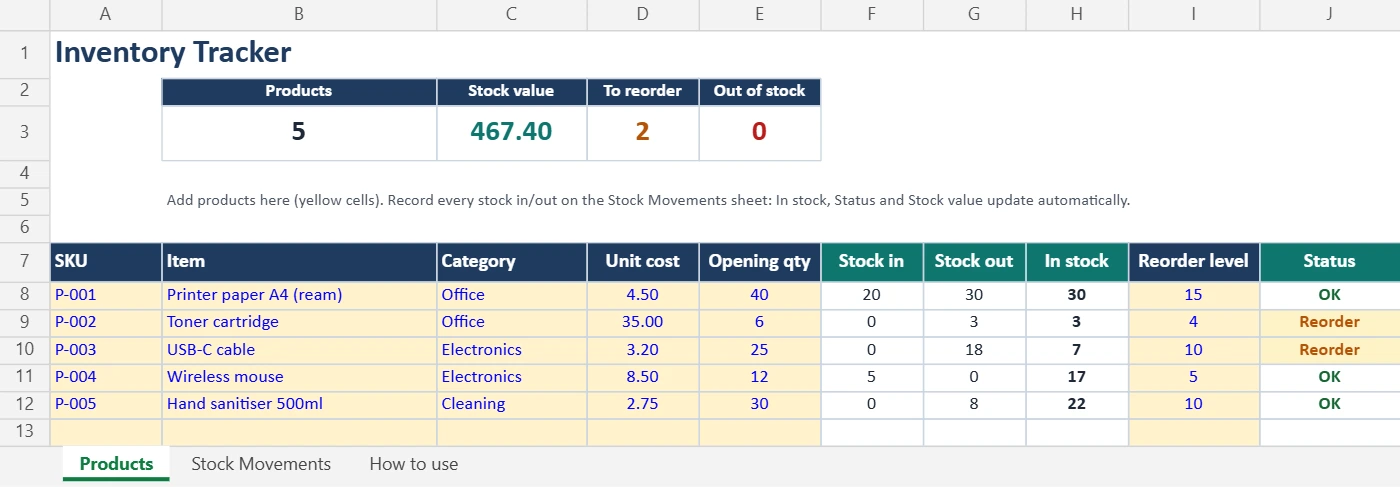
| Products | Your product list with unit cost, opening quantity and reorder level. Stock in, stock out, current stock, status and stock value calculate automatically. |
| Stock Movements | A simple log: date, SKU, In or Out, quantity and a note. SKU and type are picked from drop-downs. |
| Summary | At the top of Products: number of products, total stock value, items to reorder and items out of stock. |
| How to use | Short instructions. |
Status shows OK in green, Reorder in amber when stock reaches the reorder level, and Out of stock in red.
How to use it
- Add your products on the Products sheet: a unique SKU (product code), name, category, unit cost, the quantity you have today (opening qty) and a reorder level.
- Log every movement on the Stock Movements sheet: when stock arrives, add a row with type In; when you sell or use stock, add a row with type Out.
- Check the Products sheet: current stock and status update straight away.
- Reorder anything marked amber or red. Sort or filter the Status column to see them together.
How the formulas work
- Stock in:
=SUMIFS('Stock Movements'!D:D, 'Stock Movements'!B:B, A8, 'Stock Movements'!C:C, "In")adds all In quantities for that SKU. - In stock: opening quantity + stock in − stock out.
- Status:
=IF(H8<=0,"Out of stock",IF(H8<=I8,"Reorder","OK")) - Stock value: in stock × unit cost.
Learn more about SUMIFS and IF in 25 Excel formulas every office worker should know.
How to set a good reorder level
A simple rule: reorder level = average daily use × supplier delivery time (days) + safety stock.
Example: you sell 2 toner cartridges a week (about 0.3 a day), delivery takes 10 days, and you want 2 extra as safety stock. Reorder level = 0.3 × 10 + 2 = 5.
Example: a small shop’s week in the inventory tracker
Here is how the formulas react to a real week. A phone accessories shop tracks one product, SKU CBL-01 (USB-C cable), with an opening quantity of 40, a reorder level of 15 and a unit cost of 2.50.
| Date | Type | Qty | In stock after | Status |
|---|---|---|---|---|
| Sun | Out | 12 | 28 | OK |
| Mon | Out | 9 | 19 | OK |
| Tue | Out | 6 | 13 | Reorder |
| Wed | In | 50 | 63 | OK |
On Tuesday stock fell to 13, below the reorder level of 15, so the status turned amber and the item appeared in the “items to reorder” count. After Wednesday’s delivery, stock value is 63 × 2.50 = 157.50. You only typed four rows in the movements log; everything else updated by itself.
Who can use this inventory template?
- Retail shops: track products by SKU and see which ones to reorder.
- Cafés and restaurants: track ingredients and packaging; use kg or litres as the unit.
- Offices: track stationery, printer toner and cleaning supplies.
- Online sellers and small warehouses: log every delivery and order, and filter by category.
Tips for accurate stock
- Log movements the same day. Inventory goes wrong when entries are left for later.
- Count physically once a month or quarter. If the count differs, add an In or Out row with the note “Stock count adjustment”.
- Keep SKUs unique and never reuse a code for a different product.
- Use the drop-downs so SKUs and types are always spelled the same way. See how drop-down lists work.
- Analyse sales: build a pivot table on the Stock Movements sheet to see your fastest-moving products.
When to move to inventory software
A spreadsheet works well for up to a few hundred products and one location. Consider dedicated inventory or point-of-sale software when you have several locations, barcode scanning, online store syncing, or many people updating stock at once.
FAQ
Is it free for business use?
Yes. Use it in your business as much as you like. Please do not resell the template.
How many products can it hold?
The Products sheet has 50 ready rows and the log has 500. Insert more rows inside each table and copy the formulas down.
Does it work in Google Sheets?
Yes. Open it from Google Drive with Google Sheets; formulas, drop-downs and colours carry over.
Does this inventory template have formulas?
Yes. Stock in, stock out, current stock, status (OK, Reorder, Out of stock), stock value and the summary all calculate automatically with SUMIFS and IF formulas. You only enter products and movements.
Does it work in Google Sheets?
Yes. Upload it to Google Drive and open it with Google Sheets. The formulas, drop-downs and colors keep working.
How do I add a new product?
Add a row on the Products sheet with a unique SKU, then copy the formulas down from the row above if they are not already there. The new SKU appears in the movements drop-down.