
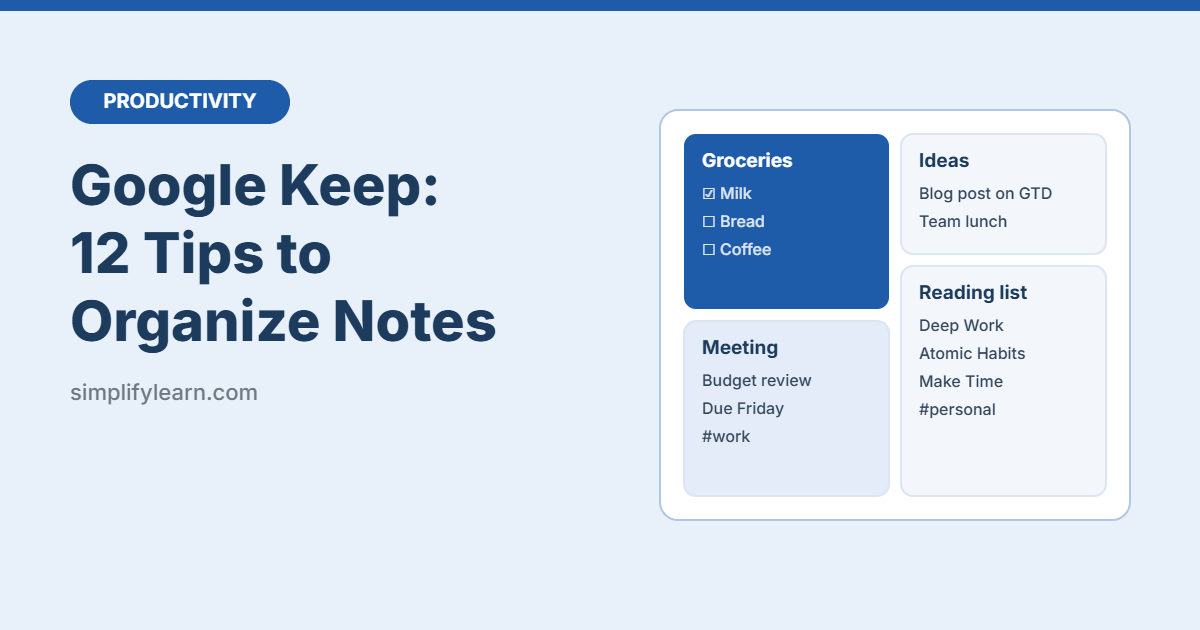
Google Keep is Google’s free notes app. It looks simple, a wall of colorful sticky notes, but it has some smart features most people never find. These 12 tips will help you turn it from a messy pile of notes into an organized system.
You can use Keep at keep.google.com, in the Android and iPhone apps, and inside Gmail, Google Docs and Google Calendar.
Getting organized
1. Use labels (and the # shortcut)
Labels work like folders, but one note can have several labels. The quickest way to add one: type # followed by the label name inside a note, for example #work, and pick it from the suggestions. You can also click Edit labels in the left sidebar to create and rename them.
2. Color-code your notes
Give each type of note its own color, such as blue for work, green for personal, and yellow for ideas. Open a note, click the palette icon, and pick a color or background. You can then search and filter by color.
3. Pin the notes you use every day
Hover over a note and click the pin icon. Pinned notes stay at the top, so your shopping list or weekly goals are always first.
4. Archive instead of delete
Finished with a note but might need it later? Click Archive. It leaves your main view but stays searchable. Deleted notes go to Trash and are removed after 7 days.
Lists and reminders
5. Make checklists
Click the New list icon (a box with a checkmark) to start a checklist. Already wrote a note line by line? Open the three-dot menu and choose Show checkboxes to turn it into a list instantly. Ticked items move to the bottom.
6. Set reminders
Click the bell icon on a note to set a reminder for a date and time. On your phone, you can also choose a place, so the reminder pops up when you arrive at the supermarket or office.
7. Share notes with others
Click the Collaborator icon (a person with a +) and add an email address. Everyone can edit the note, which is perfect for family shopping lists or a small team checklist.
Hidden power features
8. Grab text from images
Add a photo of a whiteboard, receipt or document to a note. Then open the three-dot menu on the note and choose Grab image text. Keep copies the text into the note so you can edit and search it.
9. Record voice notes
In the mobile app, tap the microphone icon and speak. Keep saves the recording and writes out what you said. It’s great for ideas while walking or driving (when it’s safe).
10. Use Keep inside Gmail and Google Docs
In Gmail, Google Docs, Sheets, Slides or Calendar, click the Keep icon in the right-hand side panel. You can read and write notes without switching tabs. In Google Docs, you can even drag a note straight into your document.
11. Copy a note to Google Docs
Notes getting long? Open the three-dot menu and choose Copy to Google Docs. Keep creates a new document with the note’s content, ready to format and share.
12. Learn a few keyboard shortcuts
| Key | Action |
|---|---|
c |
New note |
l |
New list |
/ |
Search |
e |
Archive the selected note |
Press Shift + ? in Keep on the web to see the full list.
A simple Keep setup
| Label | Color | Use for |
|---|---|---|
| #work | Blue | Meeting notes, quick to-dos |
| #personal | Green | Shopping, errands, family lists |
| #ideas | Yellow | Blog ideas, project ideas |
| #reference | Grey | Wi-Fi details, addresses, how-tos |
Keep is best for quick notes and short lists. For bigger projects or long documents, use a full task app like Microsoft To Do or a notebook app like OneNote.
Quick summary
- Use labels (type
#label) and colors to organize. - Pin daily notes, archive old ones.
- Use checklists, reminders and shared notes for everyday lists.
- Try Grab image text and the Keep side panel in Gmail and Docs.
FAQ
Is Google Keep free?
Yes. All you need is a Google account.
Can I use Google Keep offline?
Yes, in the mobile apps. Changes sync when you’re back online.
Google Keep vs OneNote: which is better?
Keep is faster for short notes and lists. OneNote is better for long, structured notes with sections and pages. Many people use both.