
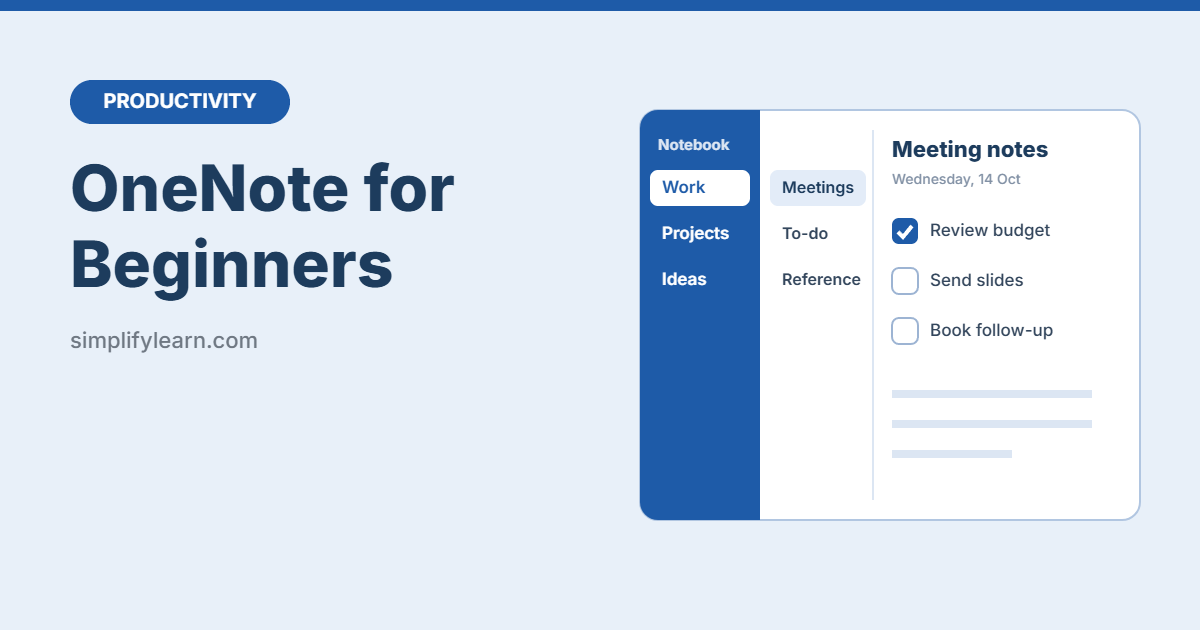
OneNote is Microsoft’s free digital notebook. Unlike a simple notes app, it’s organized like a real binder: notebooks, sections and pages. Once you understand that structure, it becomes one of the best places to keep meeting notes, project details and everything you need to remember at work.
Quick answer
- Open OneNote (desktop app, mobile app, or onenote.com) and sign in with your Microsoft account.
- Create a notebook, for example “Work.”
- Add sections for main topics: Meetings, Projects, Reference.
- Add pages inside each section for individual notes.
- Click anywhere on a page and start typing.
How OneNote is organized
| Level | Like a… | Example |
|---|---|---|
| Notebook | Binder | Work |
| Section | Tab divider | Meetings |
| Page | Sheet of paper | 2026-10-14 Budget review |
| Subpage (optional) | A sheet stapled to another | Action items |
You can also create section groups to hold several sections, for example one group per client.
Your notebooks are saved to OneDrive, so they sync automatically between your computer, phone and the web.
A simple setup for work
Start with one notebook called Work and these sections:
- Meetings: one page per meeting. Start the page title with the date (e.g. “2026-10-14 Team meeting”) so pages sort neatly.
- Projects: one page per project, with goals, contacts and status.
- To-do: a running task page (or use Microsoft To Do for tasks).
- Reference: how-tos, procedures, useful links and details you look up often.
Keep it simple at first. You can always add sections later.
Writing notes
- Click anywhere on the page to type. OneNote creates a note box at that spot.
- Paste screenshots and images straight in with
Ctrl + V. - Insert files: attach a PDF or Excel file, or insert it as a printout to see its pages inside your note.
- Draw: on a touchscreen or with a pen, use the Draw tab to sketch or write by hand.
- Record audio: use Insert → Audio to record a lecture or meeting (always ask permission first).
Use tags to find things later
Tags mark important lines on a page. The most useful one is the To Do tag: press Ctrl + 1 to add a checkbox to any line. Other tags include Important, Question and Idea (find them on the Home tab).
A meeting notes template
Copy this structure into a new page for every meeting:
- Date and attendees
- Agenda
- Notes
- Decisions
- Action items (with To Do tags, owners and due dates)
In the Windows desktop app, you can also use Home → Meeting Details to pull in the date, attendees and agenda from an Outlook meeting automatically.
10 useful tips
Ctrl + Ncreates a new page (desktop app).Ctrl + Esearches all your notebooks. OneNote even searches text inside images.- Right-click an image and choose Copy Text from Picture to grab its text.
- Drag pages to reorder them or move them to another section.
- Right-click a section and choose a color to color-code your binder.
- Use Share to invite colleagues to a notebook so everyone works on the same notes.
- Right-click a page and choose Copy Link to Page to link notes together or paste a link into Teams or email.
- Use the mobile app to snap photos of whiteboards straight into a page.
- Password-protect a section (right-click the section → Password Protect This Section) for sensitive notes. Don’t forget the password, because Microsoft can’t recover it.
- Do a quick weekly tidy-up: delete or archive old pages, just like a GTD weekly review.
Common mistakes
- Too many notebooks. One or two notebooks with good sections are easier than ten notebooks.
- Vague page titles. “Notes” and “Meeting” are impossible to find later. Use dates and topics.
- Keeping tasks only in notes. Tasks buried in long notes get forgotten. Tag them, or move them to a task app.
Quick summary
- Notebook → Section → Page, just like a binder.
- Start with one Work notebook and 3–4 sections.
- Use the To Do tag (
Ctrl + 1) for action items. - Search everything with
Ctrl + E.
FAQ
Is OneNote free?
Yes. OneNote is free with a Microsoft account, on Windows, Mac, iPhone, Android and the web. Your notebooks use your OneDrive storage.
Can I use OneNote offline?
Yes, in the desktop and mobile apps. Your changes sync to OneDrive when you reconnect.
What’s the difference between OneNote and Google Keep?
Google Keep is best for quick notes and short lists. OneNote is better for long, structured notes, meeting records and project information.
How do I organize OneNote?
Use one notebook per area (for example Work), sections for each project or team, and pages for individual notes and meetings. Keep it shallow: three levels are enough for most people.
How do I use OneNote for meeting notes?
Create a section called Meetings, add a page per meeting with the date in the title, and use the To Do tag for actions. In Outlook you can also send meeting details straight to OneNote.