
If you use Microsoft 365 or Windows, you already have OneDrive: cloud storage that keeps your files safe, syncs them between devices and makes sharing easy. Many people use it without knowing what it’s doing. This guide explains the important parts in plain language.
What OneDrive does
- Backs up your files to the cloud, so a broken or lost laptop doesn’t mean lost work.
- Syncs files between your PC, laptop, phone and the web.
- Shares files with links instead of email attachments.
- Keeps old versions so you can undo mistakes.
Work or school accounts (Microsoft 365) and personal accounts both work in a similar way. Your company may manage some settings.
1. Back up your Desktop, Documents and Pictures
- Click the OneDrive cloud icon in the taskbar → Settings (gear icon).
- Open Sync and backup → Manage back up.
- Turn on Desktop, Documents and Pictures.
Now files you save in these folders are backed up automatically. This one step protects you from most data-loss disasters. See also the 3-2-1 backup rule.
2. Understand the sync icons
| Icon in File Explorer | Meaning |
|---|---|
| ☁️ Blue cloud | Online-only: stored in the cloud, downloads when you open it |
| ✅ Green tick (outline) | Available on this device |
| ✅ Solid green circle | “Always keep on this device”, available even offline |
| 🔄 Arrows | Syncing right now |
| ❌ Red X | Sync problem. Click the OneDrive icon to see why. |
3. Save space with files on demand
You can see all your files in File Explorer without them taking up disk space. Right-click a file or folder:
- Always keep on this device: for files you need offline (e.g. before a flight).
- Free up space: keeps the file in the cloud only.
4. Share files safely
- Right-click the file → Share.
- Choose who the link works for:
- Specific people: safest, for most sharing.
- People in your organization: anyone in your company.
- Anyone: anyone with the link (only for public files, and your company may block this).
- Choose Can view or Can edit. Give edit access only when needed.
- To stop sharing: right-click → Manage access.
The same principles apply in Google Drive. See how to share files in Google Drive safely.
5. Restore an old version
Overwrote a spreadsheet by mistake? Right-click the file → Version history, pick an earlier version and click Restore. It works for Word, Excel, PowerPoint and many other files.
6. Recover deleted files
Go to onedrive.com (or your Microsoft 365 portal) → Recycle bin, select the file and click Restore. Deleted files stay there for a limited time, so act quickly.
7. Work together in real time
Files saved in OneDrive can be edited by several people at once in Word, Excel and PowerPoint. No more “final_v3_Ahmed.xlsx”. Turn on AutoSave at the top-left of Office apps.
Good habits
- Use a simple folder structure and clear names. See file naming conventions.
- Store team files in a shared library (SharePoint or a Teams channel), not in one person’s OneDrive.
- Check the OneDrive icon for errors once a week.
Quick summary
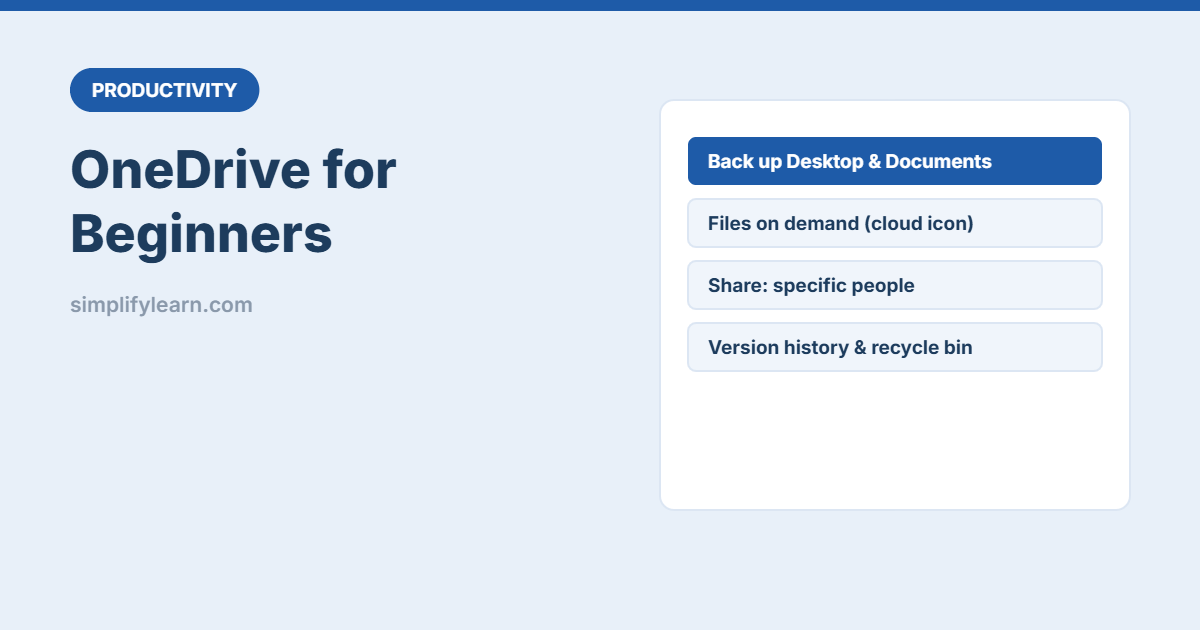
- Turn on backup for Desktop, Documents and Pictures.
- Use files on demand to save space.
- Share with specific people and the lowest access needed.
- Use version history and the recycle bin to undo mistakes.