
You probably already know Ctrl + C and Ctrl + V. But Windows has dozens of shortcuts that can save you minutes every day. Here are the 25 that are actually worth learning, grouped by what they help you do.
Most of these work in both Windows 10 and Windows 11. The few that only work in Windows 11 are marked.
Note: Win means the Windows logo key, usually between Ctrl and Alt.
Windows and apps
| Shortcut | What it does |
|---|---|
Alt + Tab |
Switch between open windows |
Win + D |
Show the desktop (press again to bring windows back) |
Win + ← / → |
Snap a window to the left or right half of the screen |
Win + ↑ / ↓ |
Maximize or minimize the current window |
Win + Z |
Open Snap Layouts (Windows 11) |
Win + 1, 2, 3… |
Open the app pinned in that position on the taskbar |
Alt + F4 |
Close the current app |
Try this: open two documents, press Win + ← on one and Win + → on the other. Now you can compare them side by side.
Screenshots
| Shortcut | What it does |
|---|---|
Win + Shift + S |
Select any part of the screen to capture (copied to clipboard) |
Win + PrtScn |
Save a full-screen screenshot to Pictures → Screenshots |
Alt + PrtScn |
Copy only the active window to the clipboard |
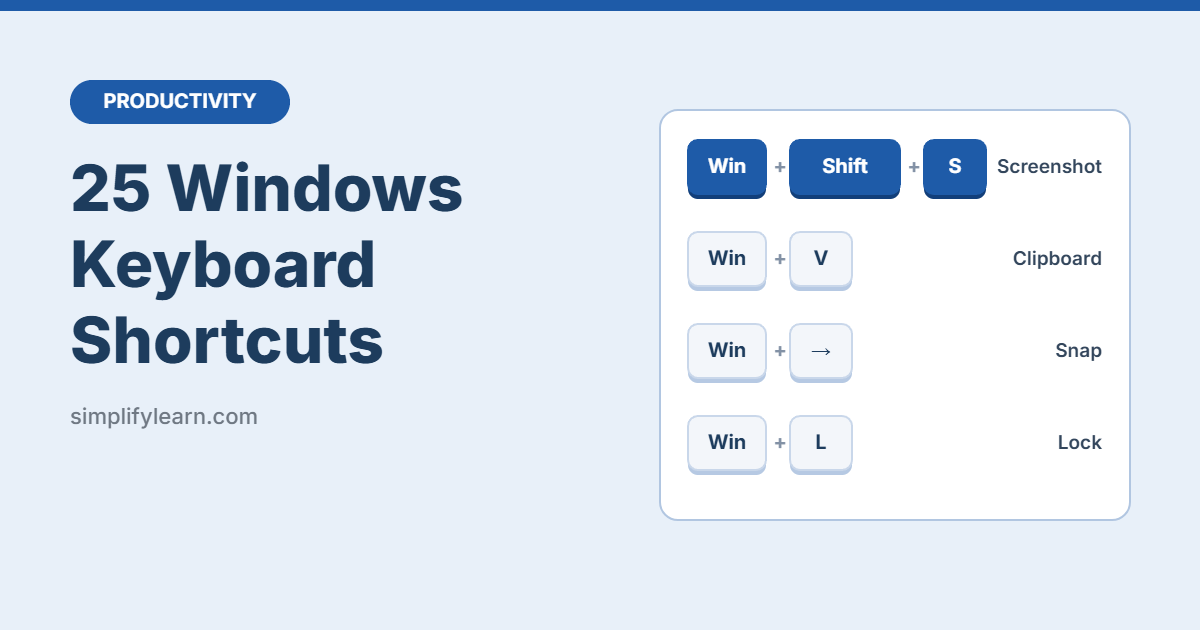
Win + Shift + S is the one most people end up using every day. After capturing, paste it straight into an email, chat, or document with Ctrl + V.
Clipboard and typing
| Shortcut | What it does |
|---|---|
Win + V |
Open clipboard history: paste anything you copied recently |
Win + . |
Open the emoji and symbols panel |
Win + H |
Start voice typing |
Ctrl + Shift + V |
Paste without formatting (in most browsers and many apps) |
Clipboard history is off by default. The first time you press Win + V, Windows asks you to turn it on. Once it’s on, you can copy five things and paste any of them later.
File Explorer
| Shortcut | What it does |
|---|---|
Win + E |
Open File Explorer |
F2 |
Rename the selected file |
Ctrl + Shift + N |
Create a new folder |
Alt + Enter |
Show properties of the selected file |
System and security
| Shortcut | What it does |
|---|---|
Win + L |
Lock your computer (use this every time you leave your desk) |
Win + I |
Open Settings |
Ctrl + Shift + Esc |
Open Task Manager directly |
Win + A |
Open Quick Settings (Wi-Fi, volume, brightness) in Windows 11 |
Virtual desktops
Virtual desktops let you keep separate workspaces, for example one for work and one for personal tasks.
| Shortcut | What it does |
|---|---|
Win + Tab |
Open Task View to see all windows and desktops |
Win + Ctrl + D |
Create a new virtual desktop |
Win + Ctrl + ← / → |
Switch between desktops |
How to actually remember them
- Learn three a week. Pick three from this list, write them on a sticky note, and use them until they’re automatic.
- Start with the big four:
Win + Shift + S,Win + V,Win + ← / →, andWin + L. - Replace a mouse habit. Every time you reach for the mouse to do something on this list, stop and use the shortcut instead.
Use Excel a lot? See our guide to Excel keyboard shortcuts.
Quick summary
Win + Shift + Sfor quick screenshotsWin + Vfor clipboard historyWin + ← / →to put two windows side by sideWin + Lto lock your PC when you step awayWin + Eto open File Explorer fast
FAQ
Do these shortcuts work on a laptop?
Yes. On some laptops, the PrtScn key or arrow keys need the Fn key as well, depending on the keyboard.
Why doesn’t Win + V show anything?
Clipboard history is off by default. Press Win + V and click Turn on, or go to Settings → System → Clipboard.
Do these work on a Mac?
No. Macs use different shortcuts, usually with the Cmd key. For example, Cmd + Shift + 4 takes a screenshot of part of the screen.