
A stolen laptop, a broken hard drive, a ransomware attack, or one accidental delete. Any of these can wipe out years of invoices, client files and photos. The good news: a reliable backup plan for a small business is cheap and takes about an hour to set up.
Quick answer: the 3-2-1 rule
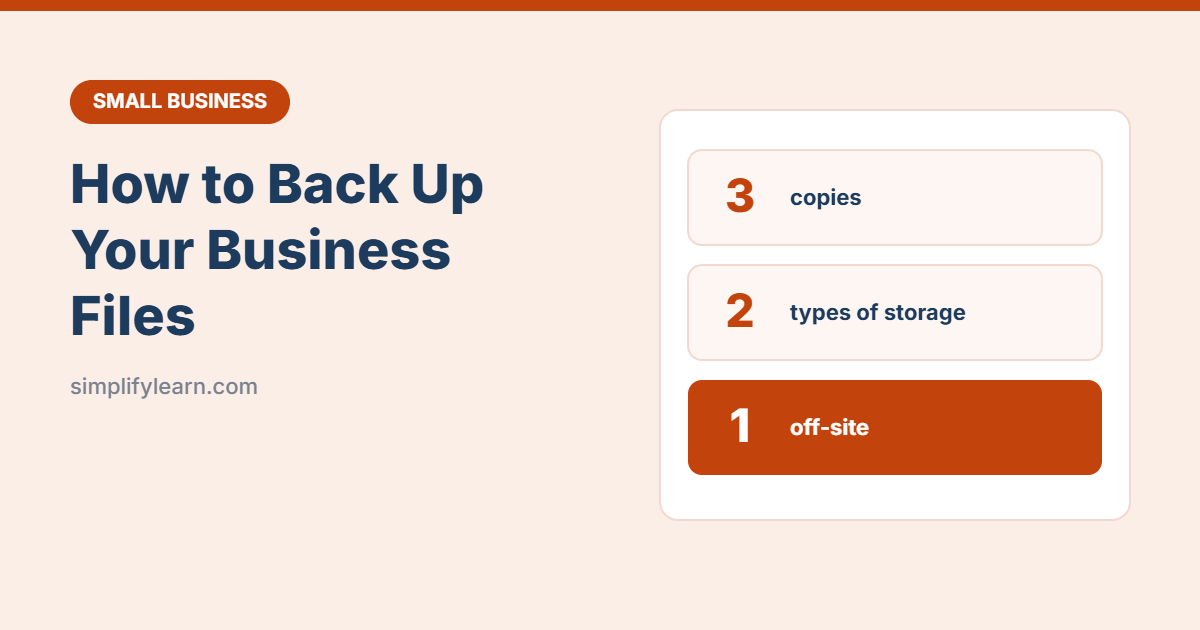
- 3 copies of your important data (the original + 2 backups)
- 2 different types of storage (for example, cloud + external drive)
- 1 copy kept off-site (the cloud counts)
Step 1: List what you need to back up
- Accounting files and invoices
- Client and supplier records (including your CRM spreadsheet)
- Contracts, HR files and licenses
- Product photos, designs and marketing files
- Your website (files + database)
- Email (especially if it isn’t on Microsoft 365 or Google Workspace)
- Important phone data, such as WhatsApp Business chats
Step 2: Put working files in the cloud
Store your everyday files in OneDrive, Google Drive or Dropbox instead of only on one computer. If a laptop dies, the files are safe and you can keep working on another device.
- OneDrive: turn on folder backup so your Desktop, Documents and Pictures folders sync automatically.
- Google Drive: install Drive for desktop and choose which folders to back up.
- Organize folders clearly. See how to organize Google Drive.
Important: cloud sync is not a full backup on its own. If you delete or ransomware encrypts a file, the change syncs everywhere. That’s why you need step 3.
Step 3: Add a second, separate backup
| Option | How | Good for |
|---|---|---|
| External hard drive | Windows: File History. Mac: Time Machine. Back up weekly, then unplug the drive. | Very small businesses, cheap and simple |
| Cloud backup service | A service that backs up your whole computer automatically and keeps older versions | Hands-off protection |
| NAS (network storage box) | A small box in the office that backs up several computers | Offices with 5+ computers |
Unplugging the external drive after each backup protects it from ransomware that spreads across connected drives.
Step 4: Back up your website and email
- WordPress website: use your host’s backup tool or a backup plugin, and store copies off the server (for example, in Google Drive or Dropbox). See choosing web hosting.
- Microsoft 365 / Google Workspace: deleted items can be recovered for a limited time. For long-term protection, consider a dedicated backup service.
Step 5: Decide how often
| Data | How often |
|---|---|
| Everyday working files | Continuously (cloud sync) |
| Full computer backup | Daily or weekly |
| Website | Daily if it changes often, otherwise weekly |
| Accounting files | After every major update, plus month-end |
Ask yourself: “How much work could I afford to lose?” If the answer is “one day,” back up daily.
Step 6: Test your backup
A backup you’ve never tested is just a hope. Every three months:
- Pick a few random files from your backup.
- Restore them to a different folder.
- Open them and check they work.
Put a recurring reminder on your calendar so you don’t forget.
Step 7: Protect the backups
- Turn on two-step verification for your cloud accounts.
- Use strong, unique passwords with a password manager.
- Encrypt external drives (BitLocker on Windows, FileVault/encrypted disks on Mac), especially if they leave the office.
Simple backup checklist
- ☐ Important folders sync to OneDrive or Google Drive
- ☐ Weekly backup to an external drive (then unplugged) or a cloud backup service
- ☐ Website backed up and stored off the server
- ☐ Two-step verification on all cloud accounts
- ☐ Restore test every 3 months
Add these to your cybersecurity checklist.
FAQ
Is Google Drive or OneDrive enough?
It’s a great first copy, but add a second backup that keeps older versions, in case files are deleted or encrypted.
How long should I keep backups?
Keep at least 30 days of versions. Keep accounting records as long as your local law requires.
What is the best backup for a small business?
Follow the 3-2-1 rule: keep your working files in a cloud service like Google Drive or OneDrive, add a second separate backup (a backup service or external drive), and keep one copy away from the office.
What is the difference between sync and backup?
Sync copies changes everywhere, including deletions and ransomware damage. A backup keeps older versions separately so you can restore files from before the problem happened.
How often should a business back up its files?
Important working files should be backed up at least daily, usually automatically. Websites and email should be backed up at least weekly and before big changes.