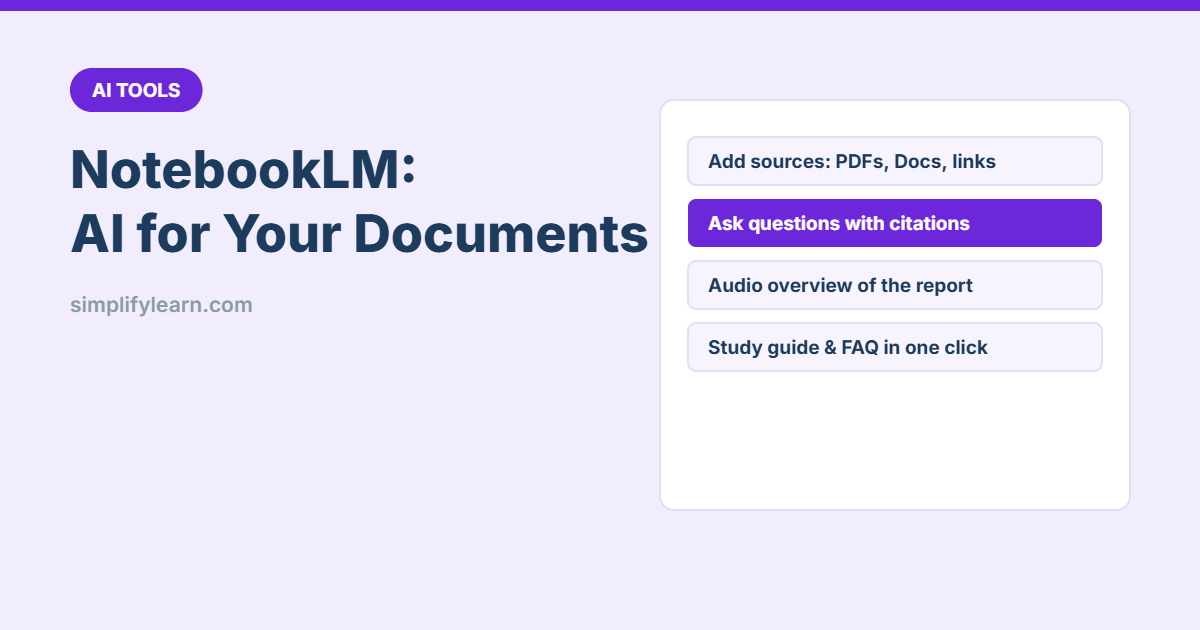
Most AI chatbots answer from what they learned on the internet. NotebookLM, from Google, works differently: it answers from your documents. You add reports, policies, meeting notes or web pages, and it becomes an assistant that knows those files, and shows you exactly where each answer came from.
What NotebookLM is good for
- Understanding long reports, contracts and tender documents quickly.
- Answering questions about company policies or manuals.
- Preparing for meetings from many documents at once.
- Creating summaries, FAQs, study guides and briefing documents.
- Learning a new topic from trusted sources you choose.
Get started in 5 minutes
- Go to notebooklm.google.com and sign in with your Google account (or your Google Workspace work account).
- Click Create new notebook. Use one notebook per project or topic.
- Add sources: upload PDFs, choose Google Docs or Slides from Drive, paste text, or add website and YouTube links.
- NotebookLM reads them and shows a short summary with suggested questions.
- Ask your first question in the chat box.
Answers with citations
Every answer includes small numbered citations. Click one to see the exact passage in your source. This is NotebookLM’s biggest strength: you can check every claim in seconds, instead of trusting the AI blindly. It’s still worth spot-checking important answers. See our fact-checking method.
Useful questions to ask
- “Summarize the main points of these documents in 10 bullets.”
- “What are all the deadlines and obligations in this contract?”
- “Where do these two reports disagree?”
- “What does our travel policy say about hotel limits?”
- “Create a list of questions I should ask in the meeting about this proposal.”
Ready-made outputs
| Output | Use it for |
|---|---|
| Briefing doc | A short overview for your manager or team |
| FAQ | Common questions about a policy or product |
| Study guide | Learning material with key terms and quiz questions |
| Timeline | Events and dates in order, useful for projects and disputes |
| Mind map | A visual map of the topics in your sources |
| Audio overview | A podcast-style conversation about your documents. Great for listening while commuting. |
The available options can change as Google updates the tool, so look in the Studio panel.
Save notes and share
- Click Save to note on a good answer to keep it in the notebook.
- Share a notebook with colleagues so everyone asks questions from the same sources.
- Copy answers into a document or email. See AI for writing emails.
Keep company data safe
- For work documents, use your company’s Google Workspace account if NotebookLM is enabled there, not a personal account.
- Don’t upload confidential files unless your company’s AI policy allows it. See our AI privacy checklist.
- Remove personal data (ID numbers, salaries, health details) before uploading.
NotebookLM vs ChatGPT, Claude and Gemini
General assistants are better for writing, brainstorming and broad questions. NotebookLM is better when the answer must come from specific documents with sources shown. Many people use both. See ChatGPT vs Claude vs Gemini and how to summarize PDFs with AI.
Quick summary
- Create one notebook per project and add your own sources.
- Ask questions and check the citations.
- Use briefing docs, FAQs and audio overviews to save time.
- Follow your company’s rules for confidential data.