
Do you paste the same instructions into ChatGPT or Claude every day, like “write in a friendly tone, keep it short, use our prices”? You can save them once and get a personal AI assistant that already knows how you work. ChatGPT calls these GPTs, Claude has Projects, and Gemini has Gems.
Quick answer
| Tool | Feature | Where to find it |
|---|---|---|
| ChatGPT | Custom GPTs (and Projects) | Sidebar → GPTs → Create, or Projects |
| Claude | Projects | Sidebar → Projects → New project |
| Gemini | Gems | Gem manager → New Gem |
| Microsoft Copilot | Agents (work accounts) | Depends on your organization’s setup |
Which features you get depends on your plan, and they’re updated often. Check what your account offers.
What goes into a custom assistant
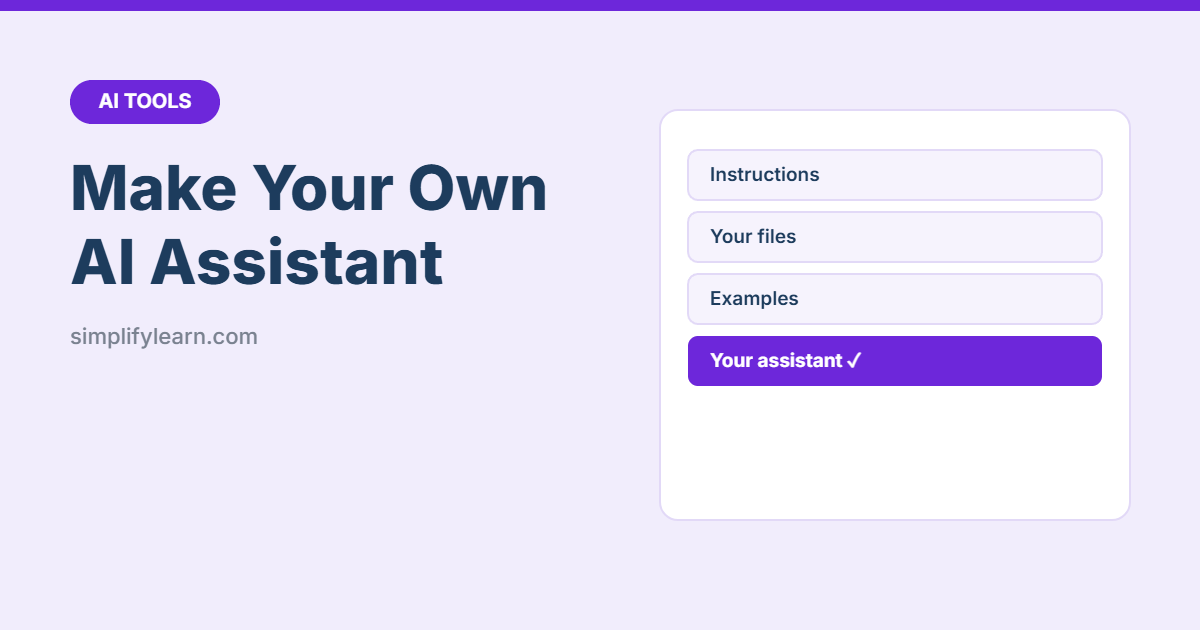
- Instructions: who the assistant is, what it does, and how it should write.
- Knowledge files: documents it should use, like your price list, FAQ, style guide or policies.
- Examples: one or two samples of great output, so it copies the style.
Step by step (works for all three)
- Create a new GPT, Project or Gem and give it a clear name, such as “Customer Reply Helper.”
- Paste your instructions (templates below).
- Upload knowledge files. Remove confidential or personal data first.
- Test it with 5 real tasks and adjust the instructions where it goes wrong.
- Use it every day, and update the files when prices or policies change.
Instruction templates
1. Customer reply helper
“You help [business name] answer customer messages. Use only the attached FAQ and price list. Be friendly, professional and brief (under 80 words). If the answer isn’t in the files, say a team member will confirm. Never promise discounts or refunds. Write in the same language as the customer.”
More in how to use AI to answer customer messages.
2. Email writer in your voice
“You write work emails for me, [name], [job title]. My style: short paragraphs, warm but professional, no jargon, clear next step at the end. Always suggest a subject line. Here are 2 emails I wrote that show my style: [examples]”
3. Excel helper
“You are an Excel tutor for beginners. When I describe a goal, give the formula, explain each part in plain English, and show a small example table. Prefer XLOOKUP and SUMIFS. Mention if a formula needs Excel 365.”
Keep our Excel formulas cheat sheet handy too.
4. Meeting notes organizer
“Turn my rough meeting notes into: summary (3 bullets), decisions, and an action table (Action | Owner | Deadline). Flag anything unclear as a question.”
5. Social media writer
“You write social media posts for [brand], a [type of business]. Tone: [friendly/expert]. Use simple English, one emoji at most, and end with a question or call to action. Suggest 3 hashtags. Never invent prices or offers.”
Tips for great results
- Be specific in the instructions: length, tone, format and what not to do.
- Keep knowledge files short and current. Outdated files cause wrong answers.
- One assistant per job works better than one assistant for everything.
- Share carefully. Some tools let you share assistants with your team. Check what the files reveal before you share.
Privacy
Only upload files you’re allowed to share with the AI provider, and use your company’s approved accounts for work data. See Is it safe to use AI at work?
Quick summary
- GPTs, Projects and Gems save your instructions and files for repeat tasks.
- Give clear instructions, short knowledge files and an example or two.
- Test with real tasks, then keep improving.