
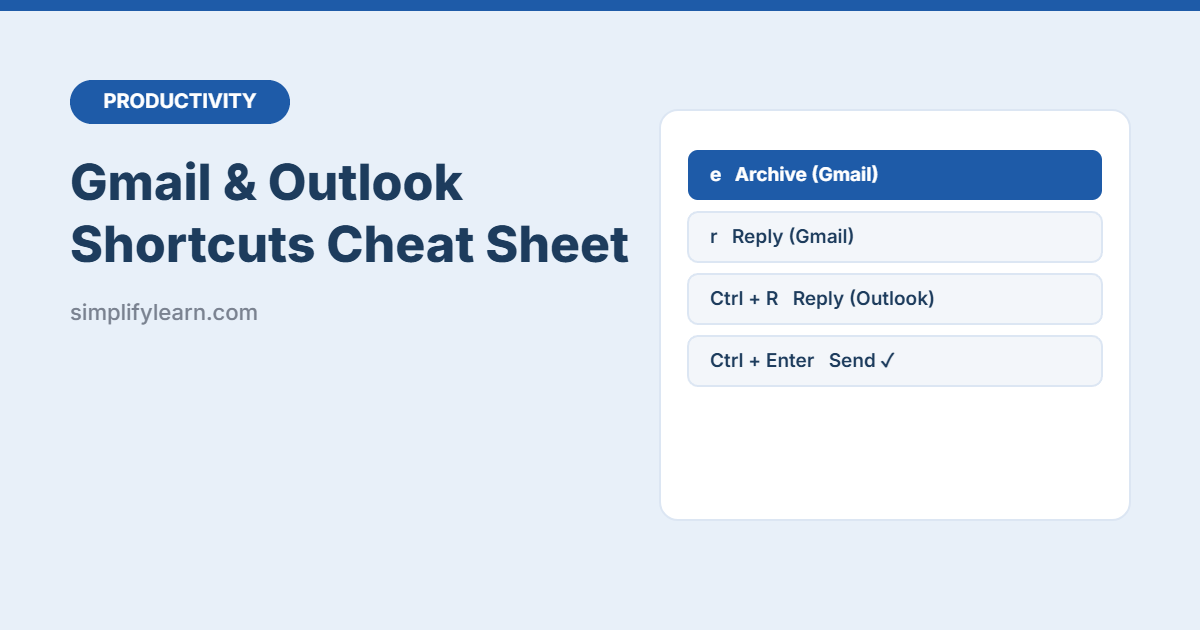
Email eats hours every week. Keyboard shortcuts can cut that time a lot: archive, reply, label and move on without touching the mouse. This free cheat sheet covers the most useful shortcuts for Gmail and Outlook on two printable pages.
Download the free Gmail & Outlook shortcuts cheat sheet (PDF, 2 pages)
Turn on Gmail shortcuts first
In Gmail, go to Settings (gear) → See all settings → General → Keyboard shortcuts on → Save Changes. Press ? anytime to see the full list.
Top Gmail shortcuts
| Key | Action |
|---|---|
c |
Compose |
r / a / f |
Reply / reply all / forward |
e |
Archive |
# |
Delete |
l |
Add label |
j / k |
Next / previous conversation |
/ |
Search |
g then i |
Go to Inbox |
Ctrl + Enter |
Send |
z |
Undo |
Top Outlook shortcuts (Windows)
| Shortcut | Action |
|---|---|
| Ctrl + N | New email |
| Ctrl + R / Ctrl + Shift + R | Reply / reply all |
| Ctrl + F | Forward |
| Ctrl + Enter or Alt + S | Send |
| Backspace | Archive |
| Ctrl + Q / Ctrl + U | Mark as read / unread |
| Ctrl + Shift + V | Move to folder |
| Ctrl + 1 / 2 | Go to Mail / Calendar |
| Ctrl + E | Search |
| Ctrl + Shift + Q | New meeting request |
Outlook on the web and the new Outlook let you choose a shortcut style in Settings, so their shortcuts may differ from Outlook for Windows. On a Mac, use Cmd instead of Ctrl.
Combine shortcuts with a system
- Archive what’s done, label what’s waiting, and keep the inbox for action only. See Gmail tips for Inbox Zero.
- Let rules sort routine email automatically. See Outlook rules.
- Check email at set times. See focus apps and distraction blockers.