
Posting “when you have time” usually means posting rarely. A content calendar helps you plan ahead, stay consistent and see everything in one place: blog posts, social media, emails and videos. This free template makes it easy.
Download the free content calendar template (.xlsx)
What is inside
| Sheet | What it does |
|---|---|
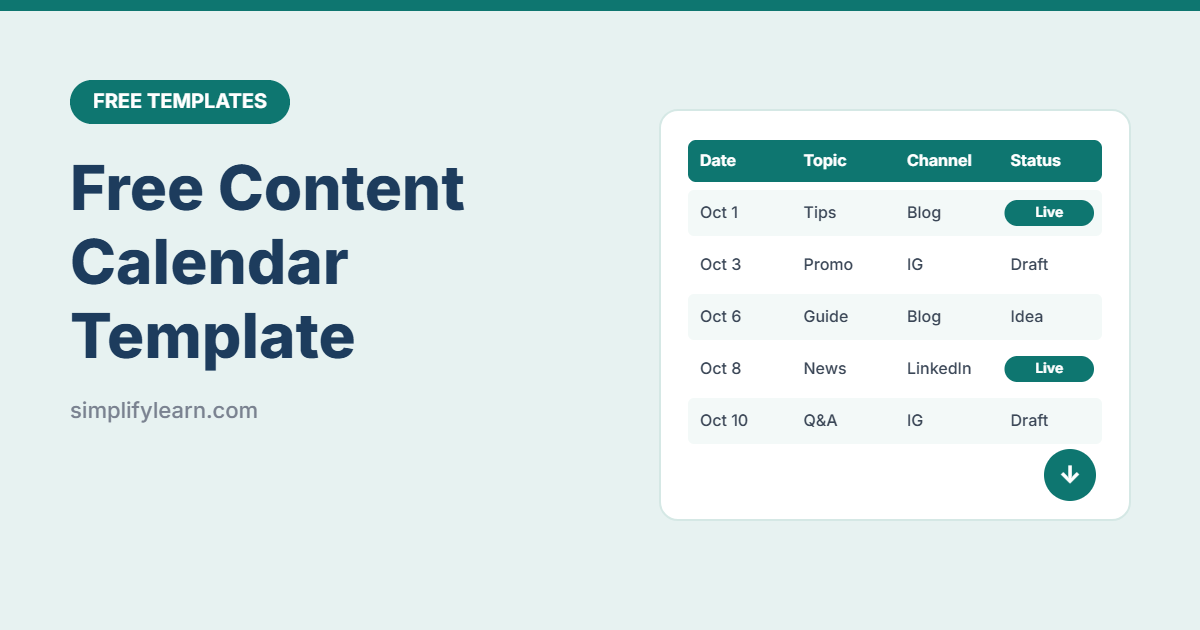
| Content Calendar | One row per piece of content: date, day, channel, type, topic, goal, owner, status, link and notes (150 rows) |
| Monthly Summary | Pick a month and see how many items you have per channel and status |
| Lists | Edit the drop-down choices for channels, content types, goals and statuses |
| How to use | Quick instructions |
Smart features
- Status colors: Idea → Drafting → Ready → Scheduled → Published, each with its own color.
- Late alerts: if the date has passed and the item isn’t scheduled or published, the date turns red.
- Today highlight: today’s content is highlighted in yellow.
- Automatic weekday next to each date.
- Filters to show one channel, one owner or one status.
How to plan a month of content in one hour
- Pick 2–3 main channels (5 min). Don’t try to be everywhere. Where are your customers?
- Set a rhythm (5 min). For example: 1 blog post a week, 3 Instagram posts a week, 1 email a month.
- Brainstorm topics (20 min). Use customer questions, seasonal events (Ramadan, National Day, back to school), product launches and tips.
- Fill the calendar (20 min). Give every item a date, channel, goal and owner.
- Check the summary (5 min). Is the plan balanced across channels and goals?
- Batch-create (later). Create similar content together, such as all graphics in one session.
AI can help with ideas and first drafts. Try our 50 prompts for office work.
Mix your content
| Type | Share | Example |
|---|---|---|
| Helpful / educational | About 60% | Tips, how-tos, answers to common questions |
| Behind the scenes / brand | About 20% | Team, process, customer stories |
| Promotional | About 20% | Offers, new products, events |
Use it in Google Sheets
Download the file and choose File → Import → Upload in Google Sheets. Share it with your team so everyone can update statuses.
FAQ
Can I add more channels?
Yes. Edit the Channel list on the Lists sheet (up to 9 channels are counted in the summary).
How far ahead should I plan?
2–4 weeks is a good balance: far enough to prepare, close enough to stay relevant.
Where do I create the graphics?
See Canva for business for quick social media designs.