
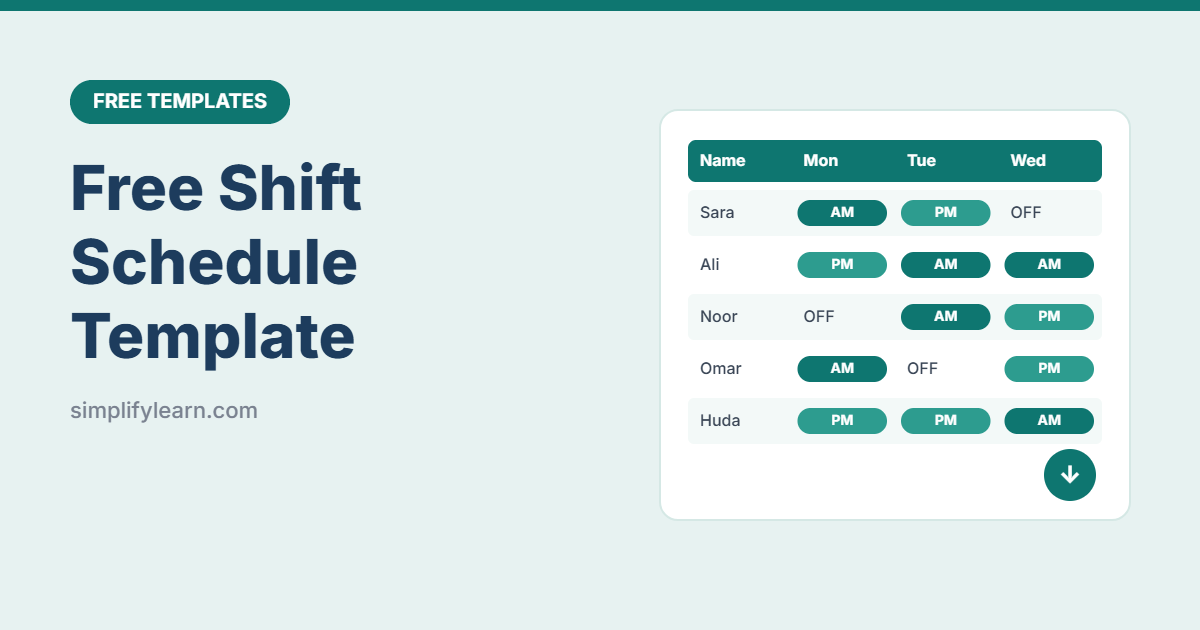
Planning staff shifts on paper or in a messy spreadsheet leads to double bookings and people working too many hours. This free weekly shift schedule makes it simple: pick a shift from a drop-down, and the template colors the cell, adds up each person’s hours, and counts how many staff you have on every shift.
Download the free shift schedule template (.xlsx)
What is inside
| Feature | How it works |
|---|---|
| Automatic dates | Type the first day of the week once. All seven day headers update. |
| Shift drop-downs | Morning, Evening, Night, Half day, OFF and Leave, each with its own color |
| Total hours | Calculated per employee from the paid hours of each shift. Totals over 48 turn red. |
| Days off | Counts each person’s OFF days for the week |
| Daily coverage | A table showing how many people work each shift every day |
| Editable shift list | Change shift names, times and hours on the Shifts sheet |
| Room for 20 staff | With notes for each person, plus a frozen header for easy scrolling |
It prints on one landscape page, ready to pin on the staff notice board.
How to use it
- Set the week: type the first day of your week (for example, Sunday) in the yellow cell.
- Add your team: replace the sample names and roles.
- Set your shifts: open the Shifts sheet and change the times and paid hours to match your business.
- Fill the week: click each day and pick a shift from the drop-down.
- Check coverage: look at the table at the bottom. Do you have enough people on every shift?
- Share it: print it, or save it as a PDF and send it to the team on WhatsApp.
Use it in Google Sheets
- Download the file.
- In Google Sheets, go to File → Import → Upload and choose the file.
- The drop-downs, colors and formulas all keep working.
- Share it with your managers so everyone edits the same schedule.
Tips for fair, easy scheduling
- Publish early: share next week’s schedule at least a few days ahead.
- Rotate the hard shifts: spread nights and weekends fairly across the team.
- Watch the hours column: keep everyone within legal working hours and your overtime budget. Check your local labor law.
- Keep a history: copy the sheet every week (right-click the tab → Move or Copy → Create a copy) so you can look back later.
- Combine with attendance: track who actually showed up with our employee attendance tracker.
FAQ
Can I add more shift types?
Yes. Edit the six rows on the Shifts sheet: rename a shift and change its hours. To add more than six, insert rows inside the table and update the drop-down range.
Does it work for 24-hour businesses?
Yes. The Night shift is already included. Just set the right paid hours.
Is it really free?
Yes. Use it for your business as much as you like.