

You have a column of full names like “Sara Ahmed” and need first and last names in separate columns. Excel gives you several ways to do it. Pick the one that matches your version and data.
| Method | Best for | Updates automatically? |
|---|---|---|
| Flash Fill | Quick one-off jobs | No |
| Text to Columns | Large lists, any Excel version | No |
| TEXTSPLIT | Excel 365 | Yes |
| LEFT/RIGHT/FIND formulas | Older Excel versions | Yes |
Method 1: Flash Fill (fastest)
- Names are in column A, starting at A2. In B2, type the first name exactly as it should appear, for example Sara.
- Click B3 and press Ctrl + E.
- Excel fills the rest of the column by following your pattern.
- Repeat in column C for the last name: type Ahmed in C2, then press Ctrl + E in C3.
Flash Fill is available in Excel 2013 and later. Check a few rows afterwards, especially names with three parts.
Method 2: Text to Columns
- Select the names in column A.
- Go to Data → Text to Columns.
- Choose Delimited and click Next.
- Tick Space and click Next.
- Set the Destination to B2 so your original column isn’t overwritten.
- Click Finish.
Each word goes into its own column. If a name has a middle name, you’ll get three columns for that row.
Method 3: TEXTSPLIT (Excel 365)
=TEXTSPLIT(A2, " ")This splits the name at every space and spills the parts into the cells to the right. Because it’s a formula, the results update when the original name changes.
Make sure the cells to the right are empty, or you’ll see a #SPILL! error.
Method 4: Formulas (any Excel version)
First name (everything before the first space):
=LEFT(A2, FIND(" ", A2) - 1)Last name (everything after the first space):
=MID(A2, FIND(" ", A2) + 1, 100)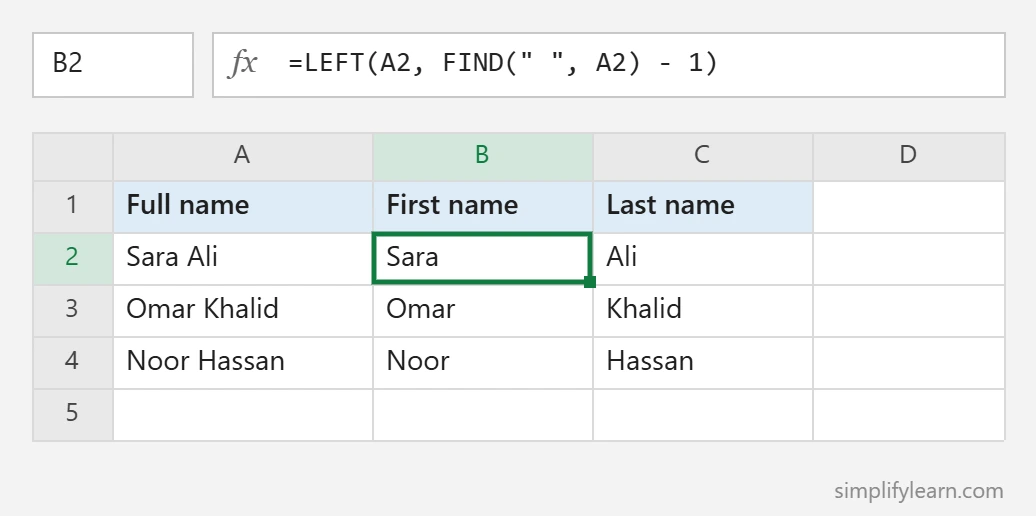
FIND locates the space, LEFT takes the characters before it, and MID takes everything after it. The 100 just means “up to 100 characters.”
In Excel 365 you can use simpler functions:
=TEXTBEFORE(A2, " ")
=TEXTAFTER(A2, " ", -1)
The -1 in TEXTAFTER means “after the last space”, which gives the last word even when there’s a middle name.
Dealing with messy data
- Extra spaces: clean them first with
=TRIM(A2), otherwise you’ll get empty columns. - “Last, First” format: split on a comma instead. In Text to Columns, tick Comma; with TEXTSPLIT use
=TEXTSPLIT(A2, ", "). - Single names: FIND returns #VALUE! when there’s no space. Wrap the formula:
=IFERROR(LEFT(A2, FIND(" ", A2)-1), A2). - Middle names: decide whether they belong with the first or last name, and use TEXTAFTER with -1 for the last word.
Combine names back together
To join first name (B2) and last name (C2) with a space:
=B2 & " " & C2Or in Excel 2019 and later: =TEXTJOIN(" ", TRUE, B2:C2).
In Google Sheets
Use =SPLIT(A2, " "), or select the column and choose Data → Split text to columns. Google Sheets also suggests Smart Fill (similar to Flash Fill) when it spots a pattern.
Next, tidy your list further with How to Remove Duplicates in Excel.