
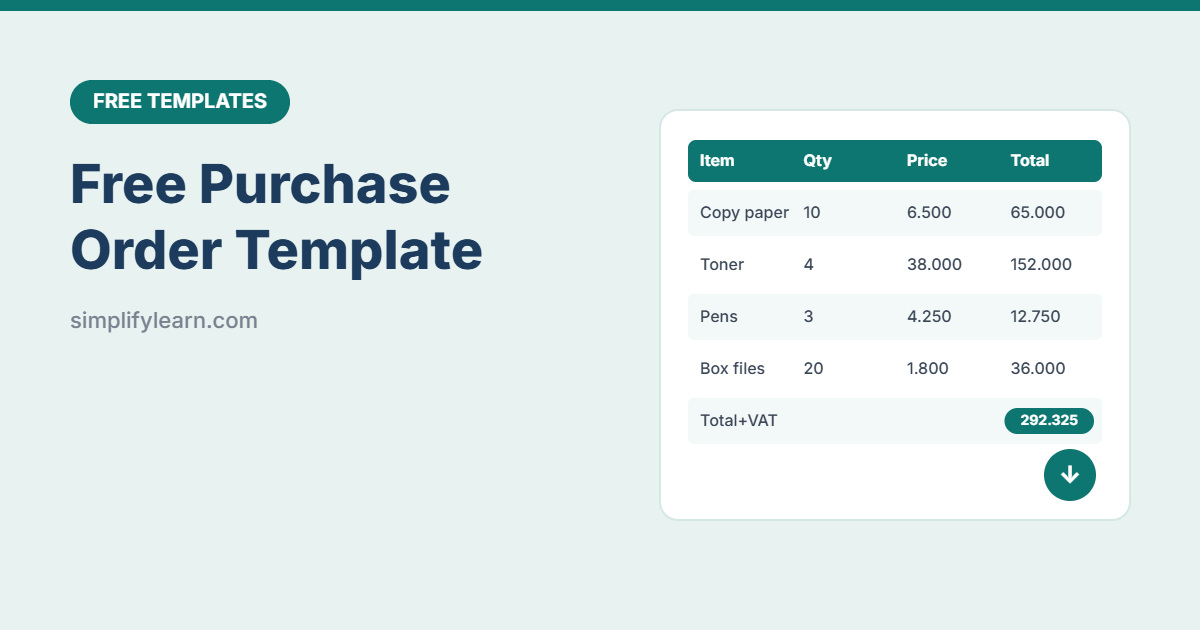
A purchase order (PO) tells a supplier exactly what you’re buying, at what price and by when. It protects both sides and makes invoices easy to check. This free template makes a professional PO in minutes and keeps a log of every order you send.
Download the free purchase order template (.xlsx)
What is inside
| Sheet | What it does |
|---|---|
| Purchase Order | A clean, one-page A4 PO with your company details, supplier, delivery address, up to 15 items, totals, terms and approval lines |
| Suppliers | Your supplier list. Choose a supplier on the PO and their address, contact, phone and email fill in automatically. |
| PO Log | Track every PO: date, supplier, amount, delivery date and status. Late deliveries turn red. |
| How to use | Quick instructions |
Smart features
- Automatic totals: line totals, subtotal, discount, VAT, shipping and grand total.
- Editable VAT rate (10% pre-filled; set your country’s rate or 0%).
- 3-decimal currency for BHD, KWD and OMR. Change the currency label in one cell.
- Supplier drop-down that fills in contact details automatically.
- Status tracking: Draft, Sent, Partly received, Received or Cancelled.
- Prints on one page, or save as PDF to email.
How to create a PO
- Add your details once: company name, address and logo at the top.
- Add suppliers on the Suppliers sheet.
- Make a copy of the Purchase Order sheet for each new order (right-click the tab → Move or Copy → Create a copy).
- Fill in: PO number, supplier, delivery date, items, quantities and prices.
- Check the totals and terms, then get approval.
- Save as PDF and email it to the supplier.
- Log it on the PO Log and update the status when goods arrive.
Purchase order vs quotation vs invoice
| Document | Who sends it | Purpose |
|---|---|---|
| Quotation | Seller → buyer | Offers a price before the sale. See our quotation template. |
| Purchase order | Buyer → seller | Confirms what you want to buy |
| Invoice | Seller → buyer | Requests payment. See our invoice template. |
Tips
- Number POs in order (PO-0001, PO-0002…) so nothing gets lost.
- Match three documents before paying: the PO, the delivery note and the invoice.
- Protect the formulas so totals can’t be overwritten. See how to protect a sheet.
- Check VAT rules for your business with your accountant.
FAQ
Does it work in Google Sheets?
Yes. Import it with File → Import → Upload. The drop-downs and formulas keep working.
Can I add more item rows?
There are 15 rows. To add more, insert rows inside the item table (above the totals) so the SUM range grows automatically.