
A stolen laptop, a broken hard drive, a ransomware attack, or one accidental delete. Any of these can wipe out years of invoices, client files and photos. The good news: a reliable backup plan for a small business is cheap and takes about an hour to set up.
Quick answer: the 3-2-1 rule
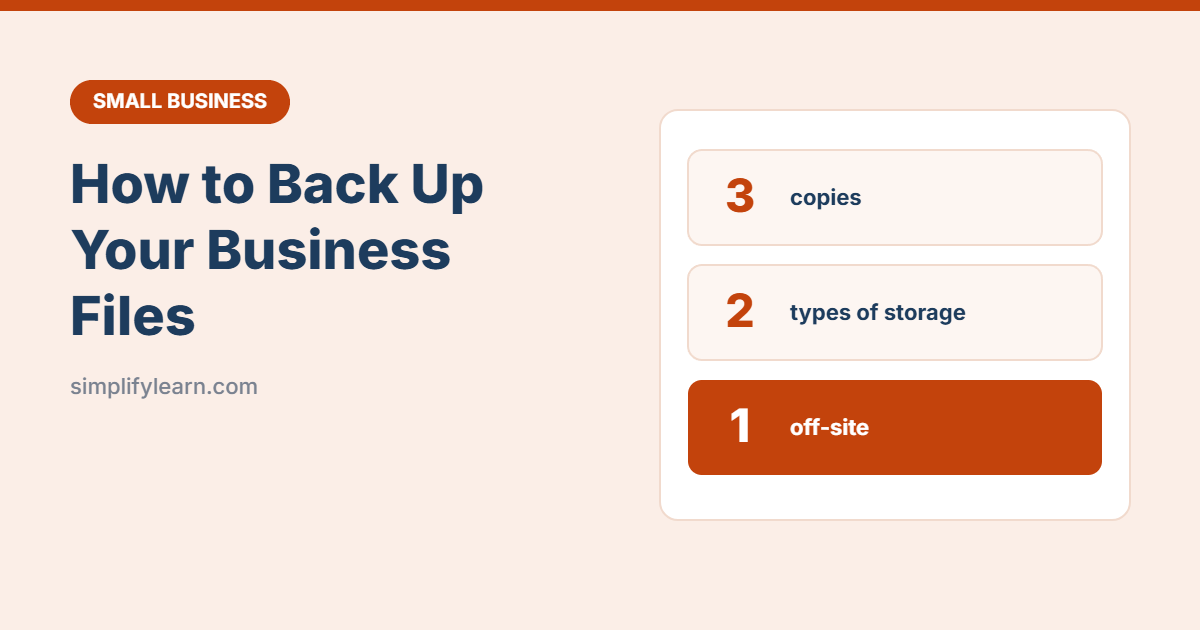
- 3 copies of your important data (the original + 2 backups)
- 2 different types of storage (for example, cloud + external drive)
- 1 copy kept off-site (the cloud counts)
Step 1: List what you need to back up
- Accounting files and invoices
- Client and supplier records (including your CRM spreadsheet)
- Contracts, HR files and licenses
- Product photos, designs and marketing files
- Your website (files + database)
- Email (especially if it isn’t on Microsoft 365 or Google Workspace)
- Important phone data, such as WhatsApp Business chats
Step 2: Put working files in the cloud
Store your everyday files in OneDrive, Google Drive or Dropbox instead of only on one computer. If a laptop dies, the files are safe and you can keep working on another device.
- OneDrive: turn on folder backup so your Desktop, Documents and Pictures folders sync automatically.
- Google Drive: install Drive for desktop and choose which folders to back up.
- Organize folders clearly. See how to organize Google Drive.
Important: cloud sync is not a full backup on its own. If you delete or ransomware encrypts a file, the change syncs everywhere. That’s why you need step 3.
Step 3: Add a second, separate backup
| Option | How | Good for |
|---|---|---|
| External hard drive | Windows: File History. Mac: Time Machine. Back up weekly, then unplug the drive. | Very small businesses, cheap and simple |
| Cloud backup service | A service that backs up your whole computer automatically and keeps older versions | Hands-off protection |
| NAS (network storage box) | A small box in the office that backs up several computers | Offices with 5+ computers |
Unplugging the external drive after each backup protects it from ransomware that spreads across connected drives.
Step 4: Back up your website and email
- WordPress website: use your host’s backup tool or a backup plugin, and store copies off the server (for example, in Google Drive or Dropbox). See choosing web hosting.
- Microsoft 365 / Google Workspace: deleted items can be recovered for a limited time. For long-term protection, consider a dedicated backup service.
Step 5: Decide how often
| Data | How often |
|---|---|
| Everyday working files | Continuously (cloud sync) |
| Full computer backup | Daily or weekly |
| Website | Daily if it changes often, otherwise weekly |
| Accounting files | After every major update, plus month-end |
Ask yourself: “How much work could I afford to lose?” If the answer is “one day,” back up daily.
Step 6: Test your backup
A backup you’ve never tested is just a hope. Every three months:
- Pick a few random files from your backup.
- Restore them to a different folder.
- Open them and check they work.
Put a recurring reminder on your calendar so you don’t forget.
Step 7: Protect the backups
- Turn on two-step verification for your cloud accounts.
- Use strong, unique passwords with a password manager.
- Encrypt external drives (BitLocker on Windows, FileVault/encrypted disks on Mac), especially if they leave the office.
Simple backup checklist
- ☐ Important folders sync to OneDrive or Google Drive
- ☐ Weekly backup to an external drive (then unplugged) or a cloud backup service
- ☐ Website backed up and stored off the server
- ☐ Two-step verification on all cloud accounts
- ☐ Restore test every 3 months
Add these to your cybersecurity checklist.
FAQ
Is Google Drive or OneDrive enough?
It’s a great first copy, but add a second backup that keeps older versions, in case files are deleted or encrypted.
How long should I keep backups?
Keep at least 30 days of versions. Keep accounting records as long as your local law requires.