How to Compare Two Lists in Excel (5 Easy Ways)
Find what’s in one list but not the other, highlight matches and duplicates, and compare row by row in Excel with COUNTIF, XLOOKUP, FILTER and conditional formatting.

Find what’s in one list but not the other, highlight matches and duplicates, and compare row by row in Excel with COUNTIF, XLOOKUP, FILTER and conditional formatting.
Use Excel’s Goal Seek to work backwards from a target: the price you need for a profit goal, the sales needed to break even, or the loan you can afford, with step-by-step examples.
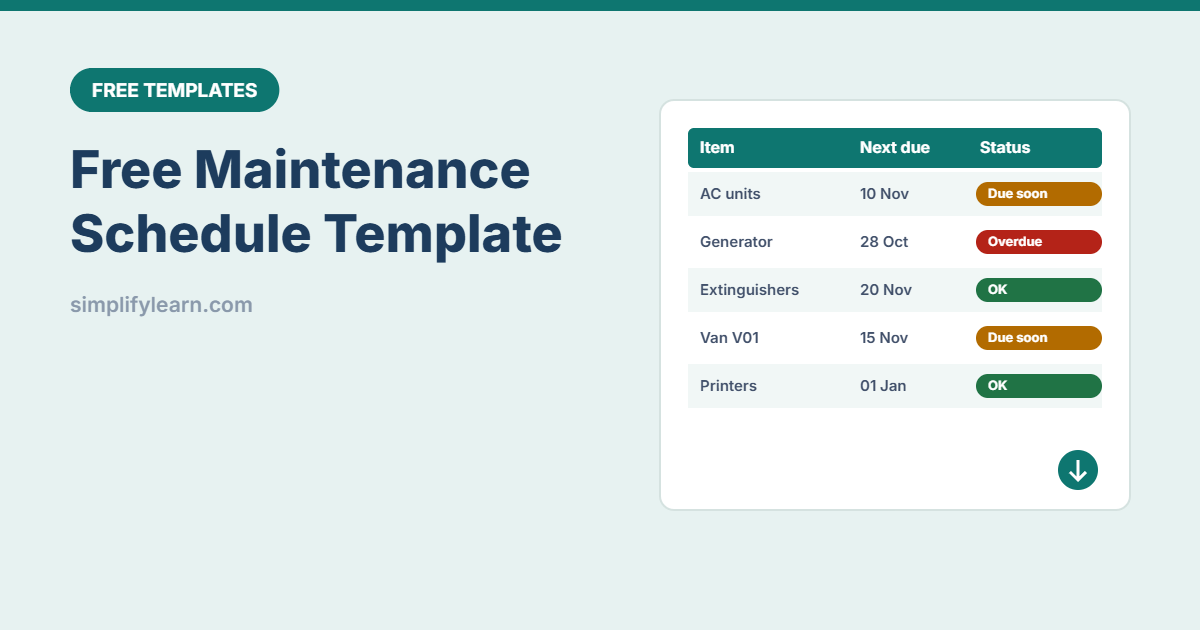
Free maintenance schedule template for Excel and Google Sheets: plan recurring maintenance for AC units, generators, vehicles, fire safety and IT, with automatic next due dates, overdue alerts, a log and yearly cost estimate.

Teach your team to spot phishing emails, fake invoices, WhatsApp and SMS scams: the warning signs, how to check links and senders, what to do if someone clicks, and simple rules that stop payment fraud.
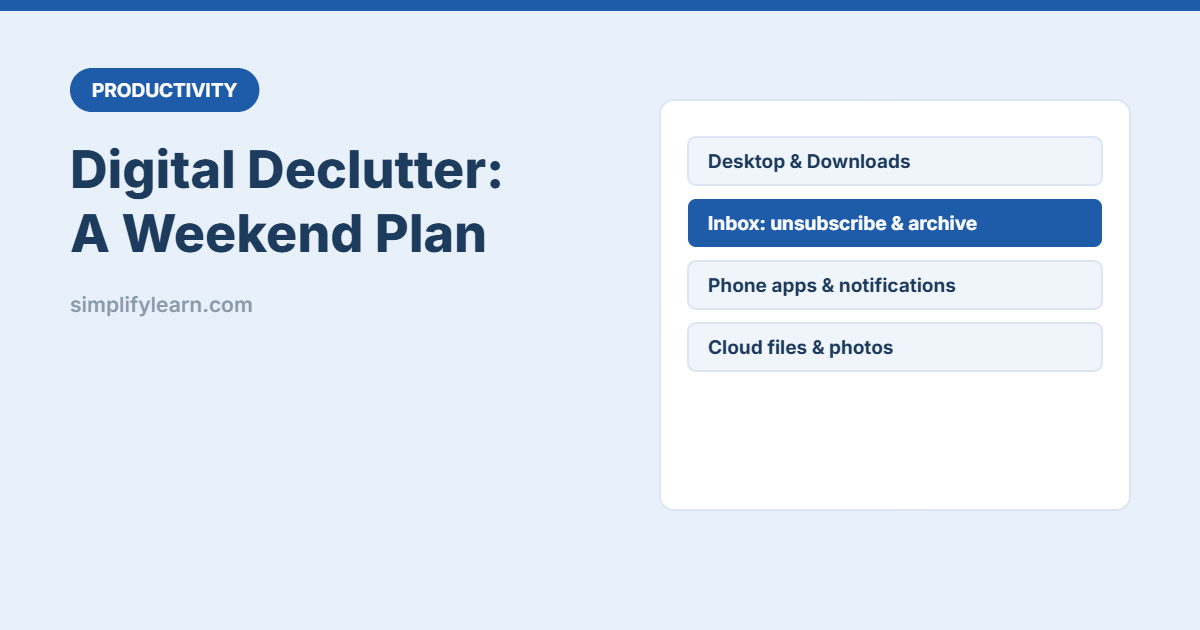
A practical digital declutter plan: clear your desktop and downloads, tame your inbox, remove unused apps and notifications, organize cloud files and photos, and keep it tidy with a 10-minute weekly habit.
Give cells and ranges names like VAT_Rate or Sales so formulas read like sentences. How to create named ranges with the Name Box, Define Name and Create from Selection, manage them, and use them in drop-downs.
How to choose accounting software for a small business: the features that matter (invoicing, VAT, bank feeds, inventory, payroll), cloud vs desktop, local requirements, questions to ask and how to switch from Excel.
15 Google Chrome tips to work faster: tab groups, pinned tabs, separate work and personal profiles, reopening closed tabs, site search shortcuts, reading mode, password safety and useful keyboard shortcuts.

Use AI to create better customer surveys and make sense of the answers: write short unbiased questions, build the form, group open comments into themes, and turn results into an action plan.
Turn any list into an Excel Table with Ctrl + T: automatic formatting, filters, formulas that copy themselves, a total row, structured references, and ranges that grow with your data.