
Most of us spend hours a day in the browser. These 15 Google Chrome tips save a few seconds each time, and add up to real time saved every week. Most also work in Microsoft Edge, which is built on the same engine.
Tabs
1. Use tab groups
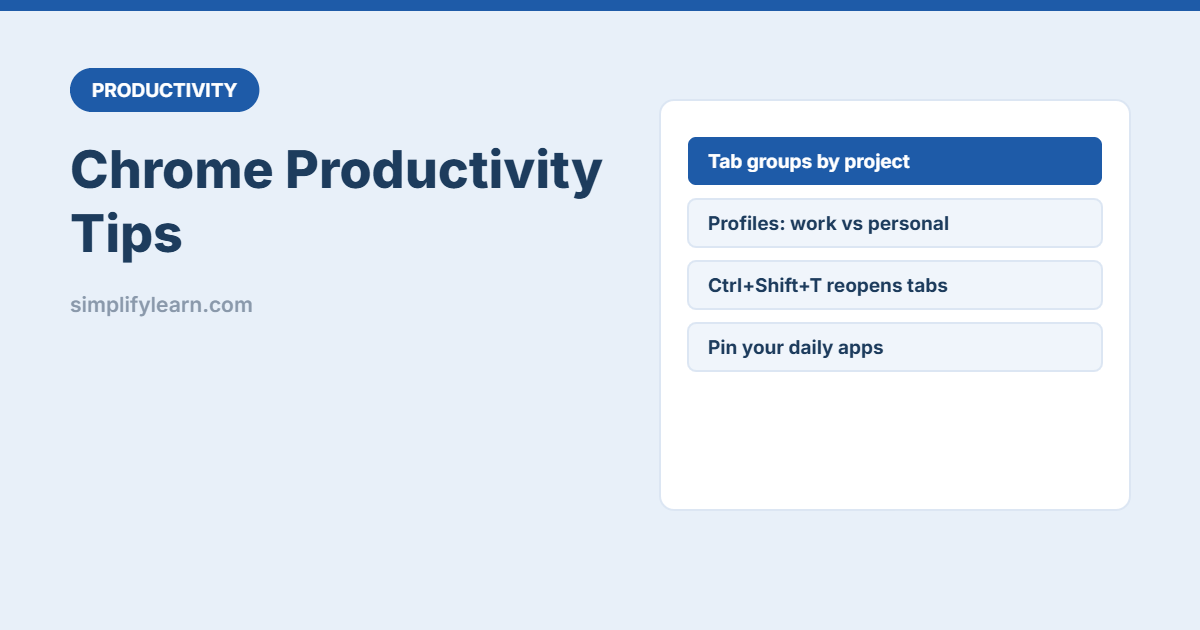
Right-click a tab → Add tab to new group, give it a name and colour (e.g. “Client ABC”, “Finance”). Click the group name to collapse it. Great for keeping projects separate.
2. Pin the tabs you use all day
Right-click → Pin for email, calendar and your main system. Pinned tabs stay small on the left and don’t close by accident.
3. Reopen closed tabs
Closed a tab by mistake? Press Ctrl + Shift + T (Mac: Cmd + Shift + T). Press again to reopen more.
4. Search your open tabs
With 30 tabs open, click the tab search arrow (top-right) or press Ctrl + Shift + A to find the right one.
5. Continue where you left off
Settings → On start-up → Continue where you left off, so a restart doesn’t lose your work.
Profiles and organization
6. Separate work and personal profiles
Click your profile picture → Add. Each profile has its own bookmarks, passwords, history and Google account. Work stays work, personal stays personal.
7. Organize bookmarks in folders
Show the bookmarks bar (Ctrl + Shift + B) and create folders like “Daily”, “Clients”, “Tools”. Shorten bookmark names to save space, or delete the name to show only the icon.
Faster searching
8. Search a site directly from the address bar
Settings → Search engine → Manage search engines and site search → add a shortcut, e.g. sl for simplifylearn.com. Then type sl + space + your search.
9. Find on page
Ctrl + F finds words on any page or PDF. It’s useful in long documents and terms and conditions.
10. Quick calculations
Type a sum like 25*12.5 in the address bar and the answer appears in the suggestions, without opening a calculator.
Reading and saving
11. Reading mode
Open the side panel → Reading mode to read articles without ads and clutter.
12. Save any page as PDF
Press Ctrl + P → Destination: Save as PDF. Useful for receipts, confirmations and online invoices. Name them clearly. See file naming conventions.
13. Share a page with a QR code
Open the menu (⋮) → Cast, save and share → Create QR code, then scan it with your phone to open the page there. The exact menu can change between Chrome versions.
Safety and speed
14. Check your passwords and extensions
Use Safety Check in Settings to find weak or leaked passwords and harmful extensions. Remove extensions you don’t use, since each one can read what you browse. For teams, a dedicated password manager is safer.
15. Learn 5 shortcuts
| Shortcut (Windows) | Action |
|---|---|
| Ctrl + L | Jump to the address bar |
| Ctrl + T / Ctrl + W | New tab / close tab |
| Ctrl + Tab | Next tab |
| Ctrl + 1…8 | Go to tab 1–8 |
| Ctrl + Shift + N | Incognito window |
On Mac, use Cmd instead of Ctrl. More in our Windows shortcuts and Mac shortcuts guides.