
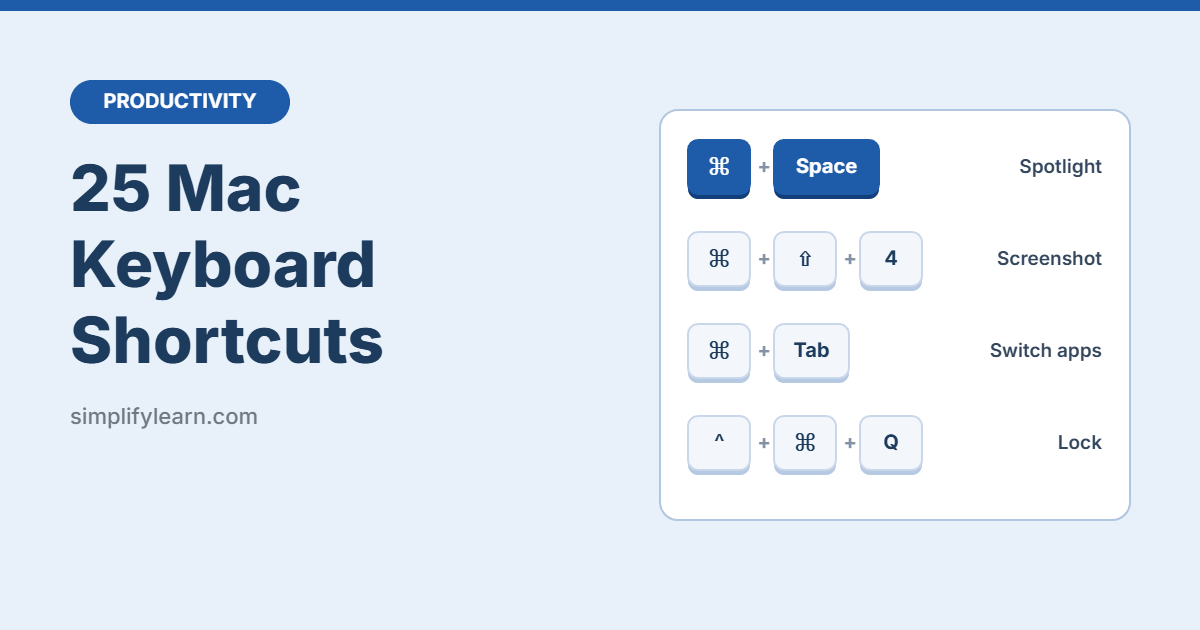
Switched from Windows, or just want to work faster on your Mac? These 25 keyboard shortcuts cover the things you do every day: switching apps, taking screenshots, managing files and finding anything in seconds.
Key symbols: ⌘ = Command, ⌥ = Option, ⌃ = Control, ⇧ = Shift. On most Mac keyboards, Command is right next to the space bar.
Apps and windows
| Shortcut | What it does |
|---|---|
⌘ + Tab |
Switch between open apps |
⌘ + ` |
Switch between windows of the same app (the key above Tab) |
⌘ + W |
Close the current window or tab |
⌘ + Q |
Quit the app completely |
⌘ + H |
Hide the current app |
⌘ + M |
Minimize the window to the Dock |
⌃ + ⌘ + F |
Enter or exit full screen |
Good to know: on a Mac, closing a window (⌘ + W) usually leaves the app running. Use ⌘ + Q to really quit it.
Screenshots
| Shortcut | What it does |
|---|---|
⌘ + ⇧ + 3 |
Capture the whole screen |
⌘ + ⇧ + 4 |
Drag to capture part of the screen |
⌘ + ⇧ + 4, then Space |
Capture one window |
⌘ + ⇧ + 5 |
Open the screenshot toolbar (includes screen recording) |
Screenshots save to your Desktop by default. Hold ⌃ while taking one to copy it to the clipboard instead, ready to paste into an email or chat.
Search and system
| Shortcut | What it does |
|---|---|
⌘ + Space |
Open Spotlight to find apps, files, and quick answers |
⌃ + ⌘ + Q |
Lock your screen |
⌘ + ⌥ + Esc |
Force quit an app that’s frozen |
⌘ + , |
Open the current app’s settings |
⌃ + ⌘ + Space |
Open the emoji and symbols viewer |
Spotlight tip: press ⌘ + Space, type the first letters of an app (“exc” for Excel), and press Return. It’s faster than clicking around the Dock.
Finder and files
| Shortcut | What it does |
|---|---|
⌘ + ⇧ + N |
Create a new folder |
Return |
Rename the selected file |
Space |
Quick Look: preview a file without opening it |
⌘ + Delete |
Move the selected file to the Trash |
⌘ + C, then ⌘ + ⌥ + V |
Move a file (instead of copying it) |
⌘ + ⇧ + . |
Show or hide hidden files |
Desktops and text
| Shortcut | What it does |
|---|---|
⌃ + ↑ |
Open Mission Control to see all open windows and desktops |
⌃ + ← / → |
Switch between desktops (Spaces) |
⌘ + ⌥ + ⇧ + V |
Paste and match style (paste without formatting) |
Windows vs Mac: quick translation
| Windows | Mac |
|---|---|
Ctrl + C / V / Z |
⌘ + C / V / Z |
Alt + Tab |
⌘ + Tab |
Win + Shift + S |
⌘ + ⇧ + 4 |
Win + L |
⌃ + ⌘ + Q |
Ctrl + Shift + Esc |
⌘ + ⌥ + Esc |
F2 (rename) |
Return |
Also use a Windows PC? See our list of 25 Windows keyboard shortcuts.
How to remember them
- Start with five:
⌘ + Space,⌘ + Tab,⌘ + ⇧ + 4,Space(Quick Look) and⌃ + ⌘ + Q. - Add three new ones each week until they’re automatic.
- Check the menus: every Mac app shows its shortcuts next to menu items in the top menu bar.
Quick summary
⌘ + Spaceto find anything with Spotlight⌘ + ⇧ + 4for quick screenshots⌘ + Tabto switch apps⌃ + ⌘ + Qto lock your MacSpacein Finder to preview any file
FAQ
Where is the Option key?
It’s between Control and Command, and may be labeled “alt” or “⌥” on some keyboards.
Do these work with a Windows keyboard on a Mac?
Yes. The Windows key acts as Command, and Alt acts as Option.
Can I create my own shortcuts?
Yes. Go to System Settings → Keyboard → Keyboard Shortcuts → App Shortcuts to add custom shortcuts for menu commands in any app.