
A clear, professional quotation helps you win more work. It shows exactly what the customer gets, what it costs and how long the price is valid. This free template creates one in minutes and tracks every quote you send, including your win rate.
Download the free quotation template (.xlsx)
What is inside
| Sheet | What it does |
|---|---|
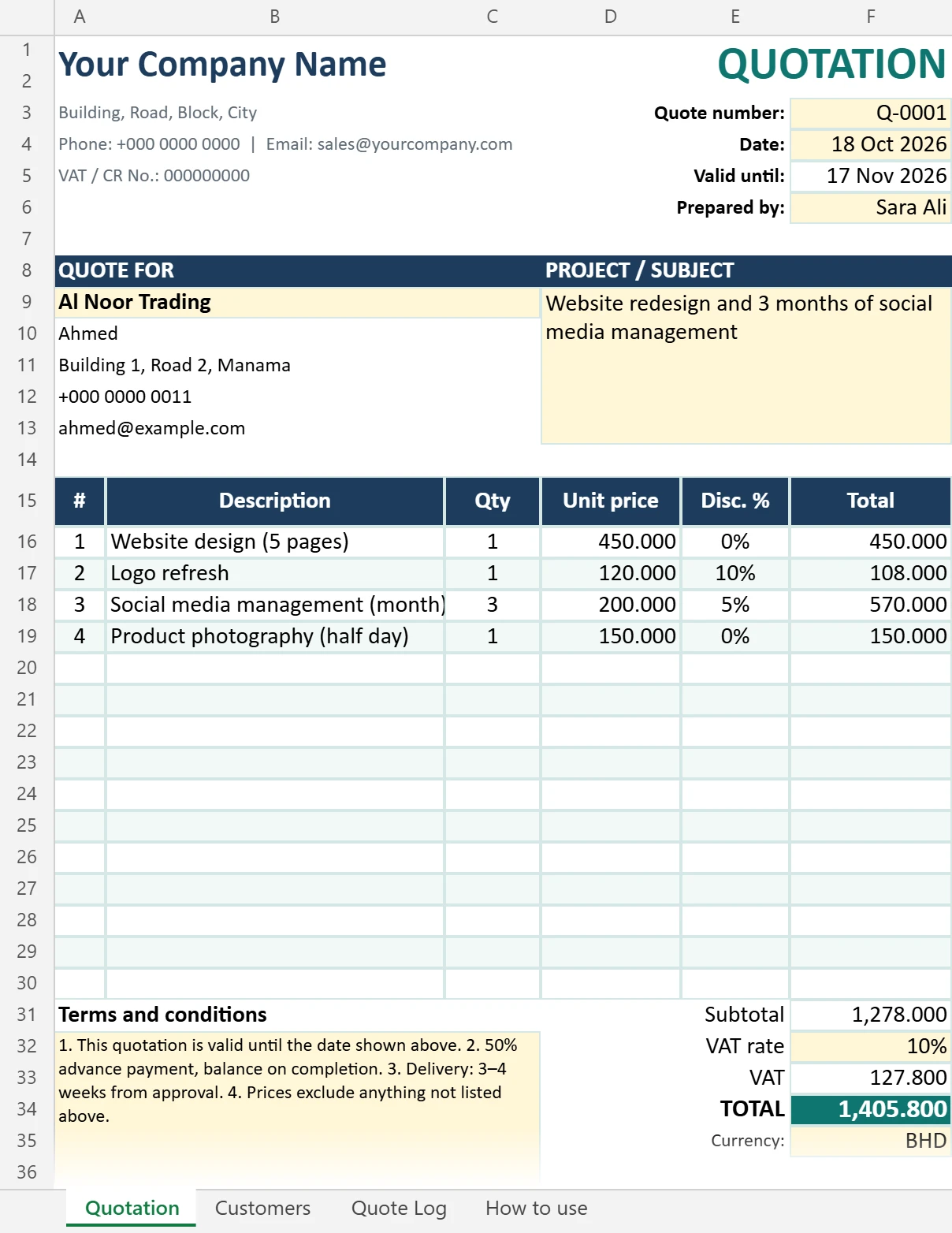
| Quotation | One-page A4 quote: your details, customer, project subject, up to 15 items with discounts, totals, terms and a customer acceptance section |
| Customers | Your customer list. Pick a customer on the quote and their details fill in automatically. |
| Quote Log | Track every quote: amount, status and follow-ups, plus automatic win rate and accepted value |
| How to use | Quick instructions |
Smart features
- Line discounts (%) with automatic line totals.
- Automatic VAT and total. Set your VAT rate in one cell (10% pre-filled).
- Valid-until date set 30 days from the quote date automatically.
- Customer acceptance section for a signature and company stamp.
- Follow-up alerts: quotes that have expired and are still “Sent” turn red in the log.
- Win rate and total accepted value calculated for you.
How to write a quote that wins
- Be specific: describe each item clearly, e.g. “Website design (5 pages),” not “Website.”
- Show the value: the project subject line should describe the result the customer wants.
- Set clear terms: payment schedule, delivery time and what’s not included.
- Add an expiry date so customers decide sooner.
- Send it fast. Speed often beats price.
- Follow up 2–3 days later. Use the Quote Log so no quote is forgotten.
Need help with the wording? See how to use AI to write better work emails for the cover email.
From quote to invoice
When the customer accepts, mark the quote as Accepted, then create the invoice with our free invoice template and record the sale in the sales tracker. Track the deal stages in the simple CRM.
FAQ
Is a quotation the same as an estimate?
They’re similar. A quotation is usually a fixed price for a defined job, while an estimate is an approximate cost that may change.
Does it work in Google Sheets?
Yes. Import it with File → Import → Upload.
Can I change the validity period?
Yes. The “Valid until” cell uses =F4+30. Change 30 to any number of days.
Is this quotation template free?
Yes, for personal and business use. Please do not resell it.
Can I save the quotation as a PDF?
Yes. The quote fits on one A4 page. Use File → Save As (or Export) → PDF and send it to your customer.