
Usually you change the inputs and Excel calculates the result. Goal Seek works the other way around: you tell Excel the result you want, and it finds the input that gets you there. “What price do I need to make 1,000 profit?” “How big a loan can I afford at 250 a month?”
How Goal Seek works
Go to Data → What-If Analysis → Goal Seek. You fill in three boxes:
| Box | What to enter |
|---|---|
| Set cell | The cell that contains the formula (e.g. profit). Excel does not change this cell directly; it changes the input below until this result reaches your target. |
| To value | The target number (e.g. 1000) |
| By changing cell | The input cell Excel may change (e.g. price). It must contain a number, not a formula. |
Example 1: What price gives my target profit?
| A | B | |
|---|---|---|
| 1 | Price | 6.00 |
| 2 | Cost per item | 3.00 |
| 3 | Items sold per month | 500 |
| 4 | Fixed costs per month | 1,500 |
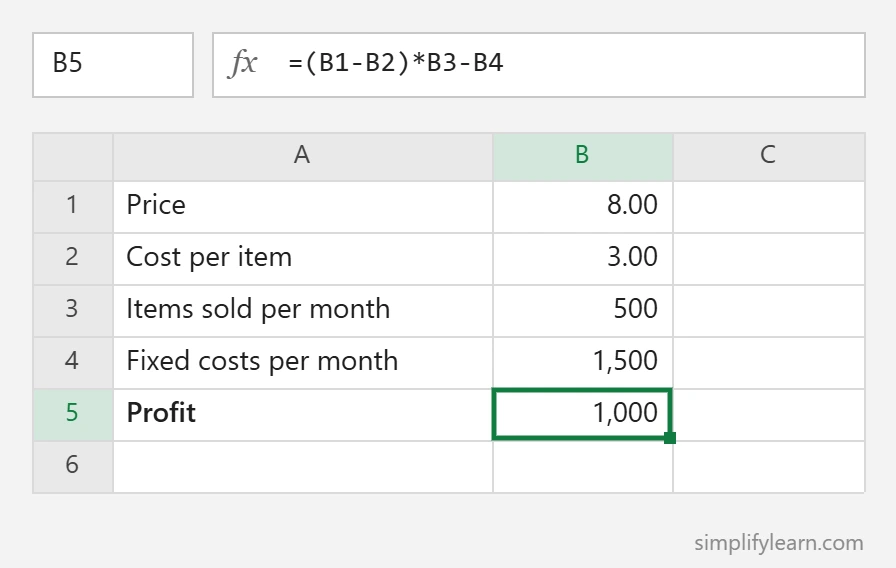
| 5 | Profit | =(B1-B2)*B3-B4 → 0 |
- Data → What-If Analysis → Goal Seek.
- Set cell: B5 · To value: 1000 · By changing cell: B1.
- Click OK.
Result: Excel changes the price to 8.00. At that price, profit is exactly 1,000.
Example 2: Break-even sales
Using the same model, set B5 to 0 by changing B3 (items sold), with the price at 6.00. Excel finds 500 items, the number you need to sell to cover all costs.
Example 3: How much can I borrow?
With a loan amount in B1 (10,000), annual interest in B2 (5%) and months in B3 (36), the monthly payment is:
=PMT(B2/12, B3, -B1)That gives about 299.71 per month. To find the loan you can afford at 250 per month, Goal Seek the payment cell to 250 by changing B1. The answer is about 8,341.
More ideas
- The score you need on the final exam to average 80%
- The discount that still keeps a 30% margin
- The monthly savings needed to reach a goal by a date
- The sales needed to hit a commission target. Combine with the sales tracker.
Tips and limits
- The “Set cell” must contain a formula that depends on the “By changing” cell.
- Goal Seek changes one input. For several inputs with limits, use the Solver add-in (File → Options → Add-ins).
- It overwrites the input cell, so press Ctrl + Z to undo if you just wanted to see the answer.
- Results may have tiny decimals. Round them if needed.
Google Sheets
Google Sheets doesn’t have Goal Seek built in, but you can install a free Goal Seek add-on from the Google Workspace Marketplace (Extensions → Add-ons → Get add-ons).
Quick summary
- Data → What-If Analysis → Goal Seek.
- Set cell = the formula result. To value = your target. By changing = the input.
- Great for prices, break-even and loan questions.